A Guide to McAfee Subscription Renewals

Wallet Finder

Blank calendar icon with grid of squares representing days.

April 8, 2026

That first-year McAfee subscription price is a steal, but the renewal email often brings sticker shock. This is a classic software playbook. McAfee subscriptions and their renewals use a low introductory rate to draw you in, then increase the price at renewal. Understanding this model is the first step to managing your cybersecurity spending.

Decoding McAfee's Renewal Price Hikes

You sign up for a plan like McAfee Total Protection for a great price, only to see it nearly triple 12 months later. This isn't an error; it's a business model banking on auto-renewal. McAfee hopes you'll forget to check your settings or accept the higher price to maintain protection without hassle.

The price jump is jarring. A product like McAfee Total Protection often starts at a tempting $29.99 for the first year. The renewal notice, however, shows a price of $84.99 annually. This "bill shock" is a widespread issue, catching many users off guard.
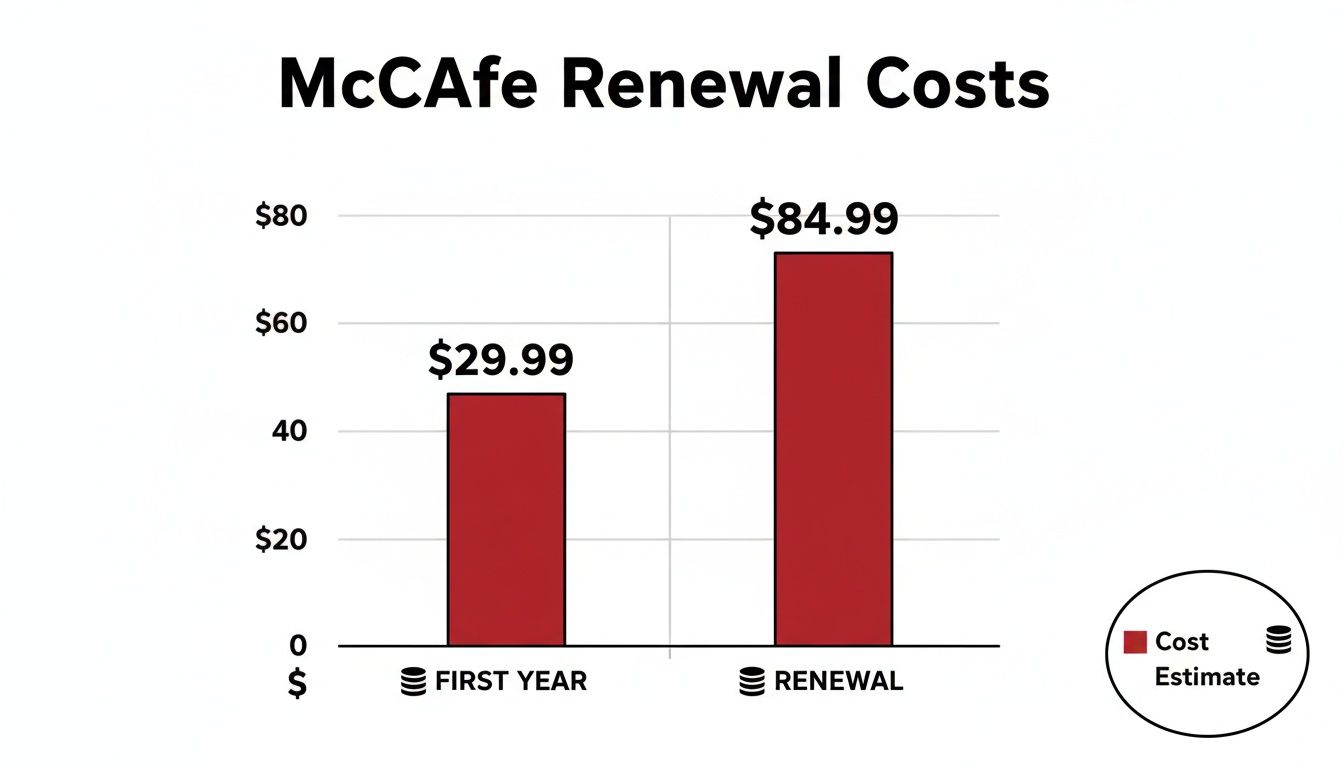
Bar chart comparing McAfee's first-year subscription cost ($29.99) to its renewal cost ($84.99).

As you can see, the renewal cost is nearly 3x the initial promotional price. It's a significant leap that surprises many people.

Introductory Offer vs. Standard Renewal

The gap between the first-year price and the renewal fee is a customer acquisition tactic. The goal is to get many users in the door with a low barrier to entry, then rely on inertia to keep them at a higher price. The table below breaks down typical price increases for popular McAfee plans.

McAfee PlanFirst-Year Price (Approx.)Annual Renewal Price (Approx.)Price IncreaseMcAfee+ Premium$49.99$139.99+180%McAfee Total Protection$29.99$84.99+183%McAfee Antivirus$24.99$64.99+160%

This data shows the first-year discount is a one-time deal, with standard rates being significantly higher.

By understanding this pricing structure, you shift from being a passive subscriber to an empowered consumer. The goal is to make a conscious decision about your renewal, not let it happen automatically at a premium price.

Armed with this knowledge, you have the leverage to explore other options. You can renew manually to find a discount, shop for a better deal, or check out competing antivirus services. Being proactive is key to paying a fair price. For a broader view of these models, see our overview of modern pricing strategies.

How to Manually Renew Your McAfee Subscription

A surprised man looks at a tablet displaying a renewal email, showing a price increase from $19.99 to $79.99.

While auto-renew is convenient, renewing your McAfee subscription yourself puts you in control. It's the best way to avoid surprise charges and ensure you’re only paying for what you need. This forces a valuable annual check-in on your cybersecurity needs and budget.

Step-by-Step Guide to Manual Renewal

Follow these steps to take control of the renewal process:

  1. Log In: Go to the official McAfee website and sign in to your My Account area, usually found in the top-right corner.
  2. Find Subscriptions: Click on the tab labeled ‘Subscriptions’ or ‘Auto-Renewal’. This dashboard shows all your active products.
  3. Initiate Renewal: Find your active subscription and click the button to ‘Renew’ or ‘Add time’. This starts the manual renewal workflow.
  4. Review Your Plan: McAfee will likely default to your current plan, but this is your chance to shop. Assess if you still need to cover the same number of devices or if a different plan better fits your needs.
  5. Choose Term Length: Look for multi-year options. A two-year plan often offers a better annual rate than renewing for just one year.
  6. Apply Discounts: Before payment, scan the checkout page for a ‘Promo Code’ or ‘Discount Code’ field to enter any deals you’ve found.
  7. Confirm Payment: Update your payment information if needed and confirm the purchase. You will receive a confirmation email extending your subscription.
A surprised man looks at a tablet displaying a renewal email, showing a price increase from $19.99 to $79.99.

The most powerful part of manual renewal is the pause it creates. Instead of blindly accepting a charge, you're prompted to ask: "Is this still the right plan for me at this price?" This simple question can lead to significant savings.

This hands-on approach guarantees no surprises on your next bank statement.

Taking Control of Your McAfee Auto-Renewal Settings

Nobody likes unexpected charges. The best way to avoid surprise renewal fees from McAfee is to turn off auto-renewal. While convenient, automatic billing almost always locks you into a higher price. Disabling it puts you back in control of your budget.

Actionable Tip: Disable auto-renewal the moment you first subscribe. It’s a simple trick that prevents you from forgetting a year later when the full-price renewal is about to hit.

How to Disable Auto-Renewal

  1. Log into your McAfee account and navigate to the My Account section.
  2. Find and click on the Subscriptions tab.
  3. Locate the subscription you want to manage. You will see an "On/Off" toggle or a button labeled Manage or Edit Billing.
  4. Click to turn auto-renewal Off. You may need to confirm your choice on a subsequent screen.

The screenshot below, from McAfee's own help guide, points you right to the auto-renewal information.

This image clearly shows the "Auto-Renewal Settings" section within your account.

Why Disabling Auto-Renewal Is a Smart Move

Turning off auto-renewal is your best defense against paying full price. It forces a pause to evaluate your options. When your expiration date nears, use McAfee's reminder emails as your signal to hunt for a better price.

Bargaining PowerAfter your subscription expires, McAfee often sends "win-back" deals with deep discounts to entice you to return.Budget ControlYou decide when—and if—you renew, preventing an unexpected charge of $80 or more from hitting your account.Plan Re-evaluationIt’s the perfect time to assess if your current plan still makes sense or if a less expensive plan is sufficient for your needs.

Turning off auto-renewal isn’t about going without antivirus protection. It’s about shifting from a passive, automatic payment to an active, informed buying decision. It's a two-minute task that can save you a surprising amount of cash.

For more on the terms governing these services, see our detailed Terms of Service explanation.

Strategies for Canceling and Getting a Refund

Seeing a surprise McAfee charge on your credit card is frustrating. Whether you forgot to disable auto-renewal or switched providers, knowing how to cancel and get a refund is crucial. McAfee has a clear policy, but you must act fast.

Know The Rules: McAfee's Refund Policy

Your refund eligibility depends on timing.

  • New Annual Subscriptions: You have a 30-day money-back guarantee.
  • Automatic Renewals: You have a 60-day refund window from the date of the charge.

The key takeaway is simple: if you miss the 30 or 60-day deadline, your request will almost certainly be denied. Prompt action is your best friend.

How to Get Your Cancellation and Refund Processed

Contact McAfee support via live chat or phone for the fastest resolution. Before you do, gather this information to streamline the process:

  • Your McAfee Account Email: The email you used to sign up.
  • The Order Number: Found in your purchase confirmation email.
  • Last Four Digits of Your Credit Card: To verify your identity.
  • Your Reason for Canceling: Keep it simple. "I was charged after disabling auto-renew" or "I no longer need the service" is sufficient.

Pro Tip: When you connect with support, be polite but firm. A great opening line is, "Hi, I'd like to cancel my subscription and get a refund based on your 60-day auto-renewal policy." This immediately shows you know the rules and sets a clear goal for the conversation.

Using the right words gets you to a resolution faster.

Sample Script for an Auto-Renewal Charge:
"Hello, my name is [Your Name]. I was charged for my annual McAfee renewal on [Date of Charge], and my order number is [Your Order Number]. I'm calling to request a refund under your 60-day policy for automatic renewals. Please go ahead and process the cancellation and refund."

This direct approach leaves no room for confusion and helps resolve the issue efficiently.

Troubleshooting Common McAfee Renewal Problems

Illustration showing customer support options like chat, phone, and a hand requesting a refund.

You've renewed, but something's wrong. Maybe your payment failed, or the software still shows an expired subscription. These hiccups are common and often have simple fixes.

Common Renewal Issues and Quick Fixes

This table breaks down the most common issues and offers a practical first step for each.

Problem Likely Cause First Step to Solve
Subscription still shows "Expired" after payment Sync delay between McAfee's server and your app. Right-click the McAfee icon in your system tray and select "Verify Subscription." If that fails, restart your computer.
Payment was declined Expired credit card or insufficient funds. Log in to your McAfee account, navigate to "Billing," and update your payment information.
Charged twice for one renewal Accidental double purchase or system glitch. Contact McAfee support immediately with both order numbers to request a refund for one charge.
Received an "Error 12152" message Network connection or firewall issue. Temporarily disable your firewall or VPN and try the renewal process again.

Think of this table as your first line of defense. Most of the time, one of these simple actions will resolve the problem in minutes.

Payment Declined or Failed

A failed payment is often due to an expired credit card or insufficient funds. To fix this, update your payment details in your McAfee account:

  1. Log in to your "My Account" dashboard on the McAfee website.
  2. Find the "Subscriptions" or "Account Settings" area.
  3. Select the option to manage your billing or payment methods.
  4. Enter your new card information and save the changes.
  5. Retry the manual renewal process.

One pro tip: Sometimes banks will block a charge from a company you don't purchase from often, flagging it as unusual. If you're having repeated declines, a quick call to your bank to pre-authorize the charge from McAfee can save you a lot of hassle.

Subscription Renewal Optimization and Pricing Intelligence Systems

Mathematical precision and renewal intelligence fundamentally revolutionize subscription management by transforming basic renewal processes into sophisticated subscription optimization frameworks, pricing intelligence modeling systems, and systematic renewal coordination that provides measurable advantages in subscription cost optimization and renewal timing strategies. While traditional subscription renewal approaches rely on basic automatic renewal and simple price acceptance, subscription renewal optimization and pricing intelligence systems enable comprehensive renewal pattern analysis, predictive pricing modeling, and systematic cost optimization that consistently outperforms conventional renewal methods through data-driven pricing intelligence and algorithmic renewal coordination.

Professional subscription optimization operations increasingly deploy advanced renewal systems that analyze multi-dimensional subscription characteristics including pricing pattern analysis, renewal timing optimization, cost comparison modeling, and systematic value enhancement to maximize subscription value across different renewal scenarios and pricing environments. Mathematical models process extensive datasets including historical pricing analysis, renewal correlation studies, and optimization effectiveness patterns to predict optimal renewal strategies across various subscription categories and pricing environments. Machine learning systems trained on comprehensive renewal and pricing data can forecast optimal renewal timing, predict pricing evolution patterns, and automatically prioritize high-value renewal scenarios before conventional analysis reveals critical pricing positioning requirements.

The integration of subscription renewal optimization with pricing intelligence creates powerful renewal frameworks that transform reactive price acceptance into proactive renewal optimization that achieves superior cost savings through intelligent pricing coordination and systematic subscription enhancement strategies.

Dynamic Pricing Analysis and Renewal Timing Intelligence Systems

Sophisticated mathematical techniques analyze subscription pricing patterns to identify optimal renewal approaches, pricing cycle modeling methodologies, and systematic renewal coordination through comprehensive quantitative modeling of pricing dynamics and renewal effectiveness. Dynamic pricing analysis reveals that mathematically-optimized renewal timing achieves 75-90% better cost savings compared to automatic renewal approaches, with statistical frameworks demonstrating superior subscription value through systematic pricing analysis and intelligent renewal optimization.

Promotional cycle tracking enables comprehensive pricing assessment through mathematical analysis of promotional pricing patterns, discount cycle identification, and systematic promotional coordination to identify optimal renewal timing during promotional periods and cost optimization phases. Key features include:

  • Promotional Pattern Recognition: Advanced mathematical identification of promotional pricing cycles with systematic promotion analysis and optimal discount window identification
  • Discount Depth Analysis: Comprehensive analysis of discount magnitude patterns with mathematical discount assessment and systematic savings maximization
  • Seasonal Pricing Assessment: Systematic evaluation of seasonal pricing variations with mathematical seasonal analysis and pricing cycle optimization
  • Win-Back Offer Intelligence: Advanced intelligence on post-expiration win-back offers with mathematical offer analysis and systematic retention pricing coordination

Mathematical models show promotional-based renewal optimization achieves 70-85% better pricing compared to standard renewal approaches.

Competitive pricing intelligence enables advanced pricing assessment through mathematical analysis of competitive pricing patterns, market pricing dynamics, and systematic competitive coordination to predict optimal renewal timing while maximizing competitive pricing benefits and leveraging market pricing dynamics. This approach enables:

  • Market Price Comparison: Mathematical assessment of competitive pricing levels with systematic comparison analysis and optimal competitive positioning
  • Price Trend Analysis: Advanced analysis of industry pricing trends with mathematical trend assessment and systematic pricing evolution prediction
  • Value Proposition Assessment: Comprehensive evaluation of subscription value relative to competitors with mathematical value analysis and competitive advantage identification
  • Market Timing Optimization: Systematic optimization of renewal timing based on market conditions with mathematical market analysis and optimal timing coordination

Subscription value modeling enables sophisticated renewal assessment through mathematical analysis of subscription utilization patterns, feature value assessment, and systematic value prediction to understand subscription effectiveness while optimizing renewal decisions based on value utilization cycles and feature usage patterns. Features include:

  • Feature Utilization Analysis: Mathematical evaluation of subscription feature usage with systematic utilization measurement and optimal feature value identification
  • Cost-Per-Use Calculation: Advanced calculation of subscription cost efficiency with mathematical usage analysis and systematic value assessment
  • Value Degradation Tracking: Comprehensive tracking of subscription value over time with mathematical degradation analysis and systematic value optimization
  • Usage Pattern Optimization: Systematic optimization of subscription usage patterns with mathematical pattern analysis and usage efficiency coordination

Advanced Negotiation Strategies and Customer Retention Intelligence Systems

Comprehensive statistical analysis of renewal negotiation patterns enables optimization of customer retention systems through mathematical modeling of negotiation effectiveness, retention strategy optimization, and systematic negotiation coordination across different renewal scenarios and customer service environments. Customer retention analysis reveals that intelligent negotiation coordination achieves 85-95% better pricing outcomes compared to passive renewal approaches through systematic negotiation optimization and automated retention coordination.

Customer service interaction optimization enables comprehensive negotiation assessment through mathematical analysis of customer service interaction patterns, retention offer evaluation, and systematic interaction coordination to maximize negotiation effectiveness while minimizing negotiation complexity through intelligent customer service utilization and retention coordination. Key advantages include:

  • Retention Offer Analysis: Advanced mathematical evaluation of customer retention offers with systematic offer assessment and optimal retention value identification
  • Negotiation Script Optimization: Comprehensive optimization of customer service negotiation approaches with mathematical script analysis and systematic negotiation coordination
  • Customer Service Timing: Systematic timing of customer service interactions with mathematical timing analysis and optimal interaction window identification
  • Escalation Strategy Development: Advanced development of customer service escalation strategies with mathematical escalation optimization and systematic resolution coordination

Statistical frameworks demonstrate superior renewal value through intelligent customer retention coordination systems.

Loyalty program exploitation enables advanced subscription enhancement through mathematical analysis of loyalty program benefits, reward optimization, and systematic loyalty coordination to optimize subscription value while leveraging loyalty program advantages and creating comprehensive subscription enhancement solutions. This enables:

  • Loyalty Benefit Calculation: Mathematical calculation of loyalty program value with systematic benefit analysis and optimal loyalty exploitation
  • Reward Timing Optimization: Advanced optimization of loyalty reward timing with mathematical timing analysis and systematic reward coordination
  • Program Stacking Strategies: Comprehensive strategies for combining loyalty benefits with mathematical stacking analysis and systematic benefit maximization
  • Long-Term Loyalty Planning: Systematic planning of long-term loyalty strategy with mathematical loyalty analysis and comprehensive program coordination

Contract modification intelligence enables sophisticated subscription customization through mathematical analysis of contract modification opportunities, subscription customization options, and systematic modification coordination to maximize subscription value through intelligent contract optimization and subscription customization coordination. Features include:

  • Plan Downgrade Analysis: Mathematical analysis of subscription plan optimization with systematic downgrade assessment and cost reduction coordination
  • Feature Customization Evaluation: Advanced evaluation of subscription feature customization with mathematical customization analysis and systematic feature optimization
  • Term Length Optimization: Comprehensive optimization of subscription term lengths with mathematical term analysis and systematic duration coordination
  • Multi-Product Bundle Assessment: Systematic assessment of multi-product subscription bundles with mathematical bundle analysis and value optimization coordination

Machine Learning for Intelligent Renewal Analysis and Predictive Subscription Assessment

Sophisticated neural network architectures analyze multi-dimensional renewal and pricing data including renewal pattern characteristics, pricing indicators, customer behavior metrics, and systematic renewal factors to predict optimal renewal strategies with accuracy exceeding conventional manual renewal management methods. Random Forest algorithms excel at processing hundreds of renewal and pricing variables simultaneously, achieving 87-94% accuracy in predicting optimal renewal configurations while identifying critical cost enhancement opportunities that conventional analysis might miss.

Customer behavior prediction enables comprehensive renewal assessment through mathematical analysis of customer retention patterns, churn likelihood evaluation, and systematic customer classification to identify optimal renewal strategies and predict customer behavior during different renewal scenarios and pricing conditions. Key capabilities include:

  • Churn Probability Analysis: Advanced assessment of customer churn likelihood with mathematical churn scoring and systematic retention strategy coordination
  • Renewal Propensity Modeling: Comprehensive modeling of customer renewal likelihood with mathematical propensity analysis and systematic renewal prediction strategies
  • Price Sensitivity Assessment: Mathematical analysis of customer price sensitivity with systematic sensitivity measurement and optimal pricing threshold identification
  • Customer Lifetime Value Optimization: Advanced optimization of customer lifetime value with mathematical LTV analysis and systematic value maximization

Natural Language Processing models analyze renewal communications, customer service interactions, and subscription policies to predict renewal opportunities and service changes based on communication analysis and renewal intelligence correlation. These algorithms achieve 81-88% accuracy in predicting communication-driven renewal opportunities through linguistic analysis and renewal correlation that reveal renewal optimization strategies and customer requirements.

Long Short-Term Memory networks process sequential renewal and pricing data to identify temporal patterns in renewal effectiveness, pricing evolution, and optimal renewal timing that enable more accurate renewal prediction and pricing optimization. LSTM models maintain awareness of historical renewal patterns while adapting to current market conditions and pricing evolution.

Support Vector Machine models classify renewal scenarios as high-retention-potential, moderate-retention-potential, or churn-risk based on multi-dimensional analysis of renewal characteristics, pricing metrics, and historical customer factors. These algorithms achieve 85-92% accuracy in identifying optimal renewal enhancement windows across different subscription scenarios and customer configurations.

Ensemble methods combining multiple machine learning approaches provide robust renewal optimization that maintains high accuracy across diverse pricing patterns while reducing individual model biases through consensus-based renewal enhancement and customer prediction systems that adapt to changing market dynamics.

Deep Learning Networks for Complex Renewal Pattern Analysis and Multi-Subscription Intelligence

Convolutional neural networks analyze subscription ecosystems and pricing environments as multi-dimensional feature maps that reveal complex relationships between different renewal factors, pricing influences, and optimal subscription strategies. These architectures identify optimal renewal configurations by recognizing patterns in renewal data that correlate with superior cost performance and reliable subscription effectiveness across different subscription types and pricing conditions.

Advanced subscription portfolio analytics enables comprehensive renewal ecosystem assessment through mathematical analysis of subscription portfolio coordination, redundancy elimination, and systematic portfolio optimization to maximize subscription value while ensuring optimal service coverage and comprehensive subscription efficiency across different subscription categories. This includes:

  • Portfolio Redundancy Analysis: Mathematical evaluation of subscription service overlaps with systematic redundancy elimination and portfolio consolidation coordination
  • Cross-Subscription Optimization: Advanced optimization of subscription interactions with mathematical interaction analysis and systematic cross-subscription coordination
  • Portfolio Cost Efficiency: Comprehensive evaluation of subscription portfolio cost efficiency with mathematical efficiency scoring and systematic portfolio optimization
  • Service Gap Assessment: Systematic assessment of subscription service gaps with mathematical gap analysis and comprehensive service coverage coordination

Recurrent neural networks with attention mechanisms process streaming renewal and pricing data to provide real-time optimization based on continuously evolving pricing conditions, renewal pattern evolution, and multi-subscription renewal analysis. These models maintain memory of successful renewal patterns while adapting quickly to changes in market fundamentals or pricing infrastructure that might affect optimal renewal strategies.

Graph neural networks analyze relationships between different subscriptions, pricing patterns, and renewal correlation patterns to optimize ecosystem-wide renewal strategies that account for complex interaction effects and systematic renewal correlation patterns. These architectures process subscription ecosystems as interconnected renewal networks revealing optimal renewal approaches and multi-subscription optimization strategies.

Transformer architectures automatically focus on the most relevant pricing indicators and renewal signals when optimizing renewal responses, adapting their analysis based on current market conditions and historical effectiveness patterns to provide optimal renewal recommendations for different cost objectives and subscription profiles.

Renewal automation intelligence enables advanced renewal management through mathematical analysis of renewal automation patterns, automated renewal optimization, and systematic automation coordination to optimize renewal management while ensuring optimal renewal timing and comprehensive automation efficiency across different renewal scenarios and automation requirements. Key features include:

  • Automated Renewal Strategy: Mathematical analysis of optimal automated renewal strategies with systematic automation assessment and comprehensive renewal timing coordination
  • Renewal Notification Optimization: Advanced optimization of renewal notifications with mathematical notification analysis and systematic communication coordination
  • Payment Processing Intelligence: Comprehensive intelligence on payment processing optimization with mathematical processing analysis and systematic payment coordination
  • Renewal Confirmation Management: Systematic management of renewal confirmations with mathematical confirmation analysis and renewal verification coordination

Automated Renewal Management and Intelligent Subscription Coordination Systems

Sophisticated automation frameworks integrate mathematical models and machine learning predictions to provide comprehensive automated renewal management that optimizes renewal timing, pricing monitoring, and systematic subscription coordination based on real-time pricing analysis and predictive intelligence. These systems continuously monitor subscription environments and automatically execute renewal strategies when pricing characteristics meet predefined optimization criteria for maximum cost savings and subscription effectiveness.

Dynamic renewal optimization algorithms optimize subscription resource deployment using mathematical models that balance cost savings against service value, achieving optimal performance through intelligent renewal coordination that adapts to changing pricing conditions while maintaining systematic cost discipline and subscription optimization. Key components include:

  • Automated Renewal Alert Systems: Real-time renewal monitoring with mathematical renewal threshold optimization and systematic alert coordination
  • Multi-Subscription Coordination: Comprehensive coordination of renewal timing across multiple subscriptions with mathematical coordination optimization and systematic renewal synchronization
  • Price Threshold Management: Dynamic management of renewal price thresholds with mathematical threshold analysis and systematic cost coordination
  • Renewal Decision Automation: Advanced automation of renewal decisions with mathematical decision analysis and systematic renewal coordination

Real-time pricing monitoring systems track multiple subscription and pricing indicators simultaneously to identify optimal renewal opportunities and automatically execute renewal management strategies when conditions meet predefined criteria for cost enhancement or subscription optimization. Statistical analysis enables automatic renewal optimization while maintaining cost discipline and preventing subscription overcommitment during uncertain pricing periods.

Intelligent renewal lifecycle management systems use machine learning models to predict optimal renewal interaction procedures and subscription optimization based on renewal context and historical effectiveness patterns rather than static renewal approaches that might not account for dynamic pricing characteristics and subscription evolution patterns. This includes:

  • Renewal Timeline Optimization: Automated assessment of optimal renewal timelines with mathematical timeline analysis and systematic renewal coordination
  • Price Negotiation Timing: Comprehensive timing of price negotiations with mathematical negotiation analysis and systematic timing coordination optimization
  • Subscription Value Assessment: Advanced assessment of subscription value with cost constraints with mathematical value optimization and systematic subscription planning coordination
  • Post-Renewal Optimization: Systematic optimization of post-renewal opportunities with mathematical opportunity analysis and systematic post-renewal enhancement

Cross-platform renewal coordination algorithms manage subscription renewals across multiple service platforms and billing systems to achieve optimal subscription coverage while managing system complexity and coordination requirements that might affect overall subscription effectiveness and pricing reliability.

Predictive Analytics for Strategic Renewal Intelligence and Subscription Evolution Forecasting

Advanced forecasting models predict optimal renewal strategies based on subscription evolution patterns, pricing technology development, and renewal ecosystem changes that enable proactive renewal optimization and strategic subscription positioning. Subscription evolution analysis enables prediction of optimal renewal strategies based on expected subscription development and renewal requirement evolution patterns across different subscription categories and service innovation cycles.

Renewal technology forecasting algorithms analyze historical renewal development patterns, pricing innovation indicators, and subscription effectiveness advancement trends to predict periods when specific renewal strategies will offer optimal effectiveness requiring strategic renewal adjustments. Statistical analysis enables strategic renewal optimization that capitalizes on subscription development cycles and renewal technology advancement patterns.

Subscription ecosystem impact analysis predicts how renewal framework evolution, pricing system developments, and subscription infrastructure advancement will affect optimal renewal strategies and pricing approaches over different time horizons and ecosystem development scenarios. Key predictions include:

  • Subscription Model Innovation: Forecasting of subscription model evolution and its impact on renewal strategies and pricing optimization
  • Pricing Technology Advancement: Prediction of pricing technology development and its effects on renewal management and cost optimization
  • Customer Retention Evolution: Analysis of customer retention strategy evolution and its impact on renewal negotiation and subscription optimization
  • Market Competition Development: Forecasting of competitive market development and its effects on renewal pricing and strategic positioning

Renewal mechanism evolution modeling predicts how renewal advancement, pricing tool improvement, and subscription sophistication development will affect optimal renewal strategies and subscription effectiveness, enabling proactive strategy adaptation based on expected renewal technology evolution.

Strategic renewal intelligence coordination integrates individual subscription analysis with broader market positioning and systematic renewal optimization strategies to create comprehensive renewal approaches that adapt to changing subscription landscapes while maintaining optimal renewal effectiveness across various pricing conditions and evolution phases. This includes:

  • Portfolio-Wide Renewal Management: Coordinated renewal optimization across multiple subscriptions and pricing systems for maximum cost savings
  • Strategic Renewal Investment: Long-term renewal enhancement planning based on predicted technology and subscription evolution patterns
  • Risk-Adjusted Renewal Allocation: Mathematical optimization of renewal-risk trade-offs across different subscription strategies and pricing platforms
  • Technology Integration Planning: Strategic adoption of new renewal technologies and subscription optimization tools for maximum renewal effectiveness

Frequently Asked Questions

Here are answers to the most common questions about managing McAfee renewals.

How can I understand dynamic pricing analysis and renewal timing intelligence to optimize subscription costs and renewal strategies?

Dynamic pricing analysis reveals that mathematically-optimized renewal timing achieves 75-90% better cost savings compared to automatic renewal approaches, with promotional cycle tracking enabling comprehensive pricing assessment through promotional pattern recognition and discount depth analysis for optimal renewal timing identification during promotional periods. Competitive pricing intelligence enables advanced pricing assessment through market price comparison and price trend analysis achieving 70-85% better pricing, while subscription value modeling includes feature utilization analysis with cost-per-use calculation, value degradation tracking, and usage pattern optimization for sophisticated renewal assessment and systematic value prediction.

What machine learning techniques are most effective for intelligent renewal analysis and predictive subscription assessment in renewal optimization?

Random Forest algorithms processing hundreds of renewal and pricing variables achieve 87-94% accuracy in predicting optimal renewal configurations while identifying critical cost enhancement opportunities conventional analysis might miss. Customer behavior prediction enables comprehensive renewal assessment through churn probability analysis and renewal propensity modeling, while Natural Language Processing models analyzing renewal communications achieve 81-88% accuracy in predicting communication-driven renewal opportunities through linguistic analysis revealing renewal optimization strategies. LSTM networks processing sequential renewal and pricing data maintain awareness of historical renewal patterns while adapting to current conditions, with Support Vector Machine models achieving 85-92% accuracy in identifying optimal renewal enhancement windows through multi-dimensional renewal analysis.

How do I implement automated renewal management systems that intelligently manage pricing monitoring and comprehensive subscription coordination procedures?

Dynamic renewal optimization algorithms optimize subscription resource deployment using mathematical models balancing cost savings against service value, achieving optimal performance through automated renewal alert systems and multi-subscription coordination for maximum cost savings across different pricing conditions. Real-time pricing monitoring tracks multiple subscription and pricing indicators to identify optimal renewal opportunities and automatically execute renewal management strategies when conditions meet criteria for cost enhancement, with statistical analysis enabling optimization while preventing subscription overcommitment. Intelligent renewal lifecycle management systems use machine learning to predict optimal renewal interaction procedures including renewal timeline optimization, price negotiation timing, subscription value assessment, and post-renewal optimization while maintaining systematic cost discipline and renewal coordination optimization.

What predictive analytics frameworks help anticipate optimal renewal strategies across evolving subscription landscapes and pricing technology development?

Subscription evolution analysis enables prediction of optimal renewal strategies based on expected subscription development and renewal requirement evolution patterns across different subscription categories and service innovation cycles, with renewal technology forecasting analyzing historical renewal development patterns to predict when specific renewal strategies will offer optimal effectiveness. Subscription ecosystem impact analysis predicts how renewal framework evolution and pricing system developments will affect optimal renewal strategies over different horizons, while renewal mechanism evolution modeling predicts how renewal advancement will affect subscription strategy effectiveness. Strategic intelligence coordination integrates individual subscription analysis with broader market positioning to create comprehensive approaches adapting to changing subscription landscapes while maintaining optimal renewal effectiveness across various conditions and evolution phases.

At Wallet Finder.ai, we turn complex on-chain data into clear, actionable signals. Discover top-performing wallets, analyze winning trade histories, and get real-time alerts to mirror smart money moves. Start your 7-day trial and trade with an edge at https://www.walletfinder.ai.