Crypto Wallet Ratings: How to Find & Copy Top Traders
Unlock the power of crypto wallet ratings. Learn how to analyze performance metrics like PnL, risk, and win rate to find and copy-trade top DeFi wallets.

May 26, 2026
Wallet Finder

May 26, 2026

You're probably doing this right now. A browser tab is open to an exchange, another tab is on TradingView, and every few minutes you alt-tab just to check whether BTC moved enough to matter. That routine works for a while, but it breaks concentration fast, especially if you're also working, researching wallets, or managing a watchlist across several coins.
A good crypto widget for Windows fixes that. It keeps price action visible without forcing you into full chart mode all day. The best ones don't just show a number. They fit the way you trade, whether that means a tiny edge ticker, a floating tile on a second monitor, or a desktop layout that combines prices, mini charts, alerts, and portfolio views.
Windows has become much better for this use case. An open-source desklet project advertises support for more than 1,500 coins and daily percent change display, while older taskbar-style tools helped normalize the idea of live crypto prices sitting directly on the desktop instead of hidden behind an exchange tab. That shift matters if you watch intraday volatility and short-term momentum.
Not every widget deserves space on your screen, though. Some are too noisy. Some are flexible but fragile. Some are clean until you realize they don't handle alerts, privacy, or layout persistence well. These are the Windows crypto widgets I'd consider installing.
DeskPulse is the one I'd pick if you want a floating crypto price tile and nothing extra. That sounds limiting, but for a lot of traders it's exactly right. You don't always need a portfolio suite on your desktop. Sometimes you just need BTC, ETH, and one or two watchlist names in view all day without giving another app too much real estate.
The product leans hard into a narrow use case. Persistent display, quick glanceability, and no pressure to connect wallets or exchange accounts. I like that philosophy because account linking in desktop widgets often creates more friction than value.
DeskPulse makes sense on a work machine, a side monitor, or a compact trading setup where every on-screen element has to earn its place. Mini mode is the right choice if you only care about price and direction. Full mode is better when you want a little more context but still don't want a charting app clone sitting over your desktop.
Practical rule: If a widget makes you stare at it, it's not helping. A good one should support a glance, then get out of the way.
A few strengths stand out:
If your main need is portfolio aggregation, DeskPulse will feel too thin. You'll likely want something paired with a dedicated tracker like this guide to the best app for tracking crypto portfolio. But if you judge tools by how little they interfere with the rest of your setup, DeskPulse gets a lot right.
Use DeskPulse if you want a clean crypto widget Windows traders can leave open all day without turning the desktop into noise.

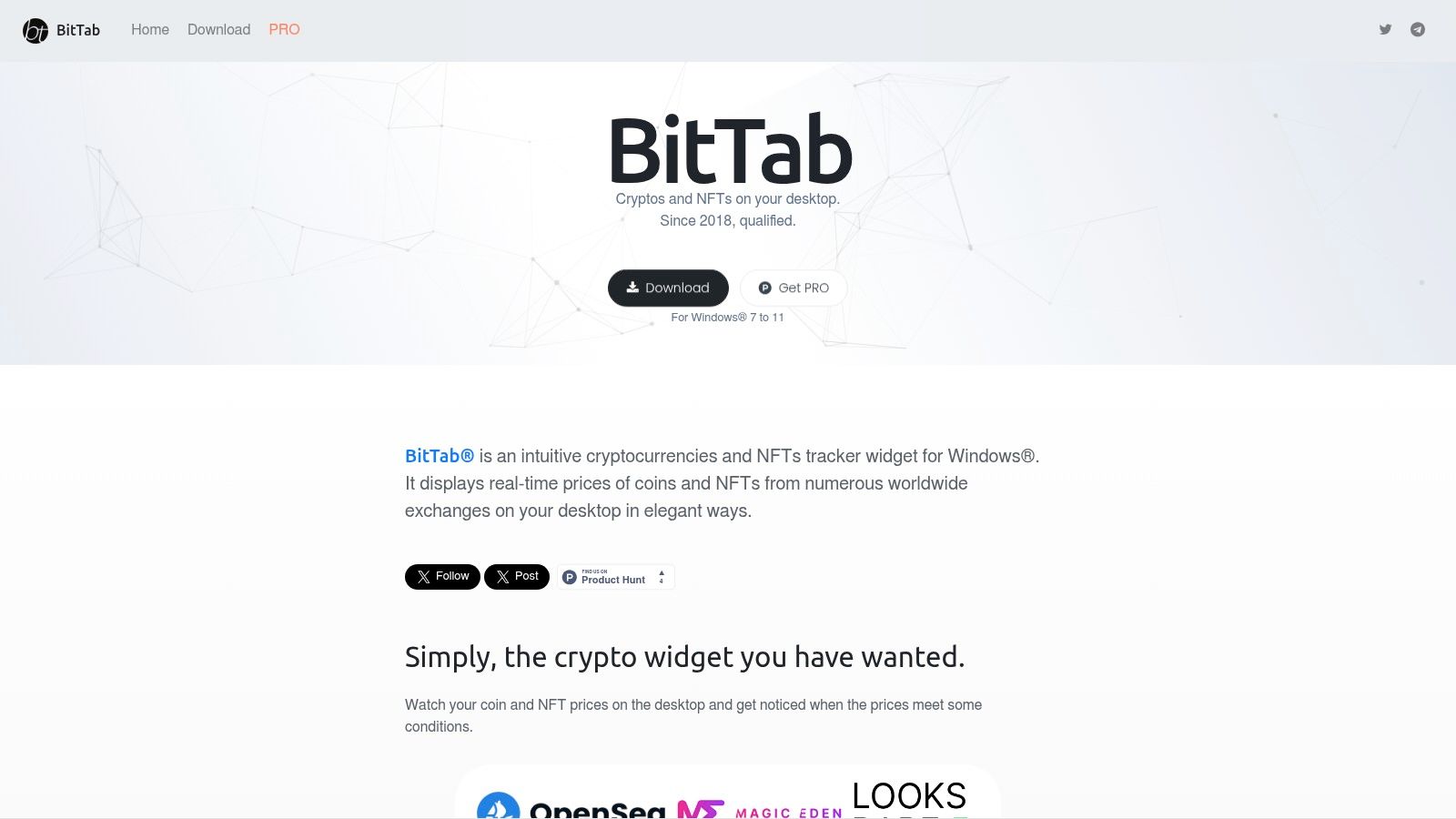
BitTab suits traders who want the desktop itself to function like a market board. A top bar for broad market awareness, a few floating boxes for active pairs, and a small portfolio panel can cover most of the routine checks that usually pull you back into an exchange tab.
That matters on busy sessions. The less often you need to dig through browser windows just to confirm price, percentage change, or basic PnL, the cleaner your workflow stays.
BitTab earns its place on layout options. You can dock it to the screen edge, run floating widgets, and keep portfolio tracking in the same app. For a Windows setup, that is useful. Full-screen chart users will appreciate edge docking more than they expect, because it keeps quotes visible without stealing much workspace.
The compromise is visual refinement. BitTab feels built by people who cared more about function than styling. I can live with that if the app stays readable, updates reliably, and lets me arrange information the way I trade. Traders who want a sharper, more modern interface may find it dated after a few days.
A few practical points stand out:
BitTab also makes sense for traders building toward a fuller Windows dashboard instead of stopping at price widgets. Use it for baseline visibility, then add active signals elsewhere, such as wallet activity or smart-money alerts pushed in through webhooks. That mix is stronger than relying on a passive ticker alone.
If you want a one-app answer for crypto widget Windows setups, BitTab remains a dependable choice.

Simple Widgets takes a very different route. It doesn't try to be a native crypto market engine. It lets you turn web elements into desktop widgets. That opens up a lot of interesting possibilities if you like CoinGecko modules, TradingView mini charts, exchange pair views, or other embeddable market components.
For power users, this is one of the most creative options on the list. You can build a desktop that looks less like a widget app and more like a custom market board suited to your own style.
The big draw is freedom. If a website already presents data the way you want, you can often pin that specific element instead of settling for a generic ticker layout from a standalone app. That's much more useful than it sounds, especially if you already know which chart modules or pair views you trust.
That flexibility comes with a catch. Your setup depends on the source site staying stable and embeddable. If a website redesigns a component, your widget can break or need rebuilding.
A practical use case looks like this:
Build around sources you already use daily. Don't add widgets just because the tool lets you.
Simple Widgets is strong for traders who enjoy assembling their own workspace. It's weaker for anyone who wants a turnkey install and zero maintenance. If you're the type who tweaks layouts, refresh cadence, and screen zones, Simple Widgets gives you unusual control.

If you already live in Rainmeter, adding crypto is easy. If you've never touched Rainmeter, this option has a learning curve that's real. The Cryptocurrency Ticker skin works best for people who already customize their Windows desktop and want crypto data to match the rest of that environment.
This isn't the fastest route to a working setup. It is one of the most customizable.
Rainmeter lets you blend system info, clocks, launchers, weather, and market data into one visual language. That's the appeal. A crypto skin can become part of a broader command center instead of floating as a separate app with its own styling logic.
The downside is maintenance. Community skins live and die by upkeep, and crypto widgets are only as reliable as the APIs they pull from. If an endpoint changes, the skin may stop behaving until someone updates it.
A few honest takeaways:
There's also a privacy angle that most Rainmeter walkthroughs don't address well. Existing coverage around Windows crypto widgets often focuses on installation, tiles, alerts, and startup behavior, but rarely digs into telemetry, local data handling, or exposure on shared desktops. That security gap has become more relevant as widgets have grown more app-like and always-on, as noted in this discussion of privacy and security concerns around Windows widgets.
If you want a fully customized crypto widget Windows layout and don't mind some tinkering, the Cryptocurrency Ticker skin for Rainmeter is still a solid route.

Swish feels more like a native market monitor than a hobbyist widget. It's built around always-on-desktop prices and mini charts, with cleaner rendering and stronger chart behavior than most widget-style tools. If your idea of a widget includes candlesticks, OHLC context, and organized multi-monitor grids, the list progresses to more advanced options.
It's stock-oriented by default, so crypto users need to pay attention to the Pro feature line. That's the main friction.
Swish is appealing when you want charting behavior without opening a full charting platform all day. The native Windows rendering approach is a plus because these tools only stay useful if they remain lightweight and don't start feeling like background bloat.
The simulated holdings and conversion features also help if you want rough context next to price movement. Not deep portfolio analytics, just enough desktop awareness to stay oriented.
A good fit for Swish looks like this:
If you need heavier wallet-level monitoring, pair a desktop price view with a stronger wallet analysis stack. This breakdown of the best wallet tracker is a better direction for that part of the workflow.
Swish isn't the cheapest-feeling option, but it's one of the more trader-friendly ones. For a more advanced crypto widget Windows setup, Swish deserves a close look.

A practical desktop setup often has to do two jobs at once. One screen tracks price, alerts, and wallet activity. The rest of the desktop still needs room for notes, calendars, clocks, and the boring work that pays for the trades. WidgetSpark fits that reality better than crypto-only widgets do.
It works best as a dashboard framework with crypto blocks inside it. That distinction matters. If you want a full crypto command center on Windows, WidgetSpark can be the layer that holds everything together, then your specialized tools handle the heavier lifting.
A primary value here is layout control. You can place floating widgets where they make sense, resize them, and keep that arrangement intact after a reboot. On a multi-monitor setup, that saves time every single day. I like tools that remember their place because desktop friction adds up fast during active sessions.
Its weakness is equally clear. The crypto side usually stops at monitoring. You get visibility, but not the kind of market depth, chart behavior, or order-flow context that a dedicated trading app gives you.
That makes WidgetSpark a good fit for traders who want a broader Windows dashboard, especially if they plan to combine passive widgets with active signals. For example, I'd use it to keep prices, watchlists, a notes panel, and a browser window for webhook-driven alerts from tools like Wallet Finder.ai in one stable layout. That turns the desktop from a collection of tickers into a working dashboard.
Here's where it earns a spot:
WidgetSpark is easiest to recommend to traders who already know they need more than a price tile. If your goal is to build a Windows desktop that combines market awareness, workflow tools, and room for external alert feeds, WidgetSpark is a sensible piece of that stack.

Scrollr is for peripheral vision. That's the whole appeal. It docks at the top or bottom of the screen and keeps a compact rolling feed visible while you do everything else. For traders who don't want tiles floating across the desktop, this is often the cleaner answer.
I like this format more than one might expect. A narrow edge ticker can be less distracting than a box widget because it occupies a predictable strip of space and doesn't compete with the rest of your screen.
Scrollr works when you care about noticing movement, not studying it. You can track crypto alongside other live feeds and keep the desktop visually calm. That's useful during work sessions, news monitoring, or passive market observation.
It's not a replacement for charts, and it's not pretending to be. The ticker format limits depth by design.
The best edge ticker tells you when to look deeper. It doesn't try to be the whole terminal.
Its main pros and cons are straightforward:
If your current crypto widget Windows setup feels cluttered, Scrollr is one of the better ways to simplify it without losing visibility.

Crypto Price Widget is a minimal open-source option that gets the basics right. It's the kind of app I'd install on a spare machine or a test setup first, because it's quick to try and doesn't bury you in configuration before showing useful data.
One verified technical detail stands out. The project advertises updates every 5 seconds and support for the 20 most traded currencies, which is good enough for glance monitoring on majors where stale quotes become annoying fast.
That refresh pace makes it more practical than many free widgets that feel delayed or sleepy. If you're only watching a handful of liquid coins, that's enough to keep a side display relevant throughout the day.
Still, this is not a full alerting platform. It's better as a live tile than as a decision engine. If your workflow depends on event-based reactions, you'll want alerts outside the widget itself. For that, use a dedicated alert stack such as this guide to the best crypto price alert app.
What I'd expect from it:
For a free crypto widget Windows users can test quickly, Crypto Price Widget is easy to recommend.
YellowTicker strips the concept down to one symbol, one overlay, always visible. That sounds almost too limited until you try it with a pair you really care about. If BTC/USD is the only thing you need in front of you all day, a single-symbol overlay can work better than a busy multi-coin board.
I wouldn't use this as my only market tool, but I would use it as a heartbeat display.
This kind of tool helps when you already know your market and don't want discovery features. You want one number, threshold alerts, and enough theming and opacity control to keep it unobtrusive. YellowTicker does that job better than broader apps that force extra panels and menus into the experience.
The trade-off is obvious. It's bad for scanning. If your process depends on comparing several coins, this isn't your answer.
A smart use case is:
This is the opposite of a dashboard app. That's why some traders will love it and others won't last a day with it. If your version of a crypto widget Windows setup means βshow me only the pair that matters,β YellowTicker is a sharp tool.
CryptoWidget-Portable is the quick test option. No heavy install path, no complex onboarding, and a simple pay-what-you-want distribution model. That's appealing if you're experimenting on a laptop, a temporary machine, or a desktop where you don't want another full application setup.
Portable tools have a place in trading workflows. They're easy to trial, easy to remove, and useful when you want a small live price tile without committing to a bigger platform.
I'd put this in the category of lightweight utility rather than long-term command center. It's practical for users who want configurable price tiles and don't need a full feature stack behind them.
The main caution is project scope. Small developer-led tools can be excellent, but updates and maintenance can vary. That doesn't make them bad. It just means you should treat them as compact utilities, not mission-critical infrastructure.
There's also a bigger question many crypto widget reviews skip. Always-visible prices can help passive awareness, but they can also create distraction and overtrading. Existing coverage often compares convenience features like tiles, startup launch, and alerts without really testing whether widgets beat newer workflows such as push alerts or browser pinning. That trade-off is highlighted in this discussion about whether desktop widgets are still worth using versus alert-based workflows.
If you want a no-fuss crypto widget Windows install that's easy to test, CryptoWidget-Portable on itch.io is a reasonable place to start.
| Product | Core Focus | UX / Quality (β ) | Unique Selling Point (β¨π) | Target Audience (π₯) | Pricing / Value (π°) |
|---|---|---|---|---|---|
| DeskPulse | Always-on price tile, Binance/CoinGecko feeds, lowβoverhead | β β β β | β¨ Open-source & privacy-first, glanceable UI | π₯ Privacy-minded traders, minimalists | π° Free base + one-time Pro |
| BitTab | Multi-ticker desktop ticker with portfolio & NFT support | β β β β | β¨ Portfolio PnL, templates; π broad exchange coverage | π₯ Active Windows traders wanting integrated PnL | π° Subscription PRO per PC/year |
| Simple Widgets | Turn web elements into live desktop widgets (charts, embeds) | β β β β | β¨ Embed any web widget (TradingView/CoinGecko) | π₯ DIY traders building custom dashboards | π° Freemium / paid tiers |
| Rainmeter + "Cryptocurrency Ticker" | Skin-based, highly skinnable coin tickers within Rainmeter | β β β | β¨ Deep theming & community skins | π₯ Customizers who use Rainmeter desktops | π° Free |
| Swish | Native Direct2D widgets with mini-charts & simulated holdings | β β β β | β¨ Native rendering (low overhead), strong charting | π₯ Multi-monitor traders wanting native performance | π° Free + Pro (crypto features) |
| WidgetSpark | App with 100+ floating, resizable widgets incl. crypto | β β β | β¨ Multi-widget dashboards, session restore | π₯ Users wanting mixed utility + crypto widgets | π° Free + Pro features via Store |
| Scrollr | Edge ticker (top/bottom) for glanceable live crypto/stocks | β β β β | β¨ Open-source edge ticker, ultra-low footprint | π₯ Users who want peripheral monitoring | π° OSS + optional paid 'Uplink' |
| Crypto Price Widget | Minimal open-source real-time price tile (Windows/Mac) | β β β | β¨ Simple, fast, GitHub releases | π₯ Users wanting a no-frills free tile | π° Free (OSS) |
| YellowTicker | Single-symbol always-on-top overlay with alerts | β β β | β¨ Single-symbol heartbeat, opacity/theming | π₯ Traders who need one constant price feed | π° Free / optional API fees |
| CryptoWidget-Portable | Portable itch.io tile; no-install, pay-what-you-want | β β β | β¨ Portable, quick test drive; pay-what-you-want | π₯ Casual users or testers, portable setups | π° Payβwhatβyouβwant |
The best Windows crypto setup usually doesn't come from installing the biggest app on the list. It comes from matching the tool to the job. A single always-on-top ticker works well if you trade one pair aggressively. A floating tile or mini-chart app makes more sense if you monitor a small watchlist. A web-powered dashboard is better if you already rely on several sources and want them visible at once.
That's why I don't think there's one universal winner. DeskPulse is strong when you want a clean, privacy-conscious price tile. BitTab works better if you want portfolio context and alerts in one place. Simple Widgets is ideal for people who like building their own layout from web components. Swish stands out when mini charts matter. Scrollr and YellowTicker are both good reminders that less can be more if your current desktop is too busy.
The bigger workflow question is whether a widget should stay passive or become part of your signal stack. For most traders, passive widgets are useful for awareness, not execution. They help you notice movement, hold context in your peripheral vision, and reduce unnecessary tab switching. They don't replace proper alerts, on-chain monitoring, or deeper chart review.
That's where a smarter dashboard comes in. Keep the widget for visual presence, then pair it with event-based alerts that only interrupt you when something actionable happens. For DeFi and copy trading, that can mean using wallet-tracking signals alongside your desktop display. A price tile tells you that something is moving. A wallet alert can tell you who moved first, what they bought, and whether the move is worth chasing.
My preferred setup is usually layered:
That last layer is where webhooks become useful. If you're using a wallet intelligence platform that can push alerts into Telegram, mobile notifications, or other workflows, your desktop widget stops being just a passive display. It becomes the visual front end of a much better system. You glance at price, then act because an alert gives the reason to care.
Start simple. Install one free widget and live with it for a week. If you find yourself ignoring it, it's too noisy or too shallow for your workflow. If you keep glancing at it without feeling distracted, you're close. From there, add only what improves decisions.
If you want your desktop widget to do more than display price, pair it with Wallet Finder.ai. It helps traders track profitable on-chain wallets, spot smart money activity across major ecosystems, and get fast alerts when watched wallets buy, swap, or sell. That combination works well in practice. A Windows widget keeps the market in view, and Wallet Finder.ai supplies the trading signal that tells you when the move matters.