Google Sheets Import JSON: An Actionable Guide
Learn to Google Sheets import JSON from any API. This guide covers custom scripts, Apps Script, and add-ons with actionable, real-world examples.

April 4, 2026
Wallet Finder

April 4, 2026

Getting JSON data into Google Sheets can feel like a puzzle. You could use the built-in =IMPORTDATA function, but that only works for the simplest CSV or TSV files. For anything more complex, like nested data from an API, you'll need something more powerful.
That’s where tools like Google Apps Script come in, letting you write custom functions to handle tricky data. However, for most users, a popular open-source script like IMPORTJSON hits the sweet spot between power and simplicity. It lets you pull data directly from APIs into a sheet with just one formula, turning your spreadsheet into a live dashboard.
Manually copying and pasting data from an API or another web service is a surefire way to waste time and introduce errors. Automating the process by setting up a direct JSON import offers significant advantages.
Key Benefits of Automation:
Choosing the right method depends on your data's complexity and your technical comfort level. This decision tree is a great way to visualize your options.
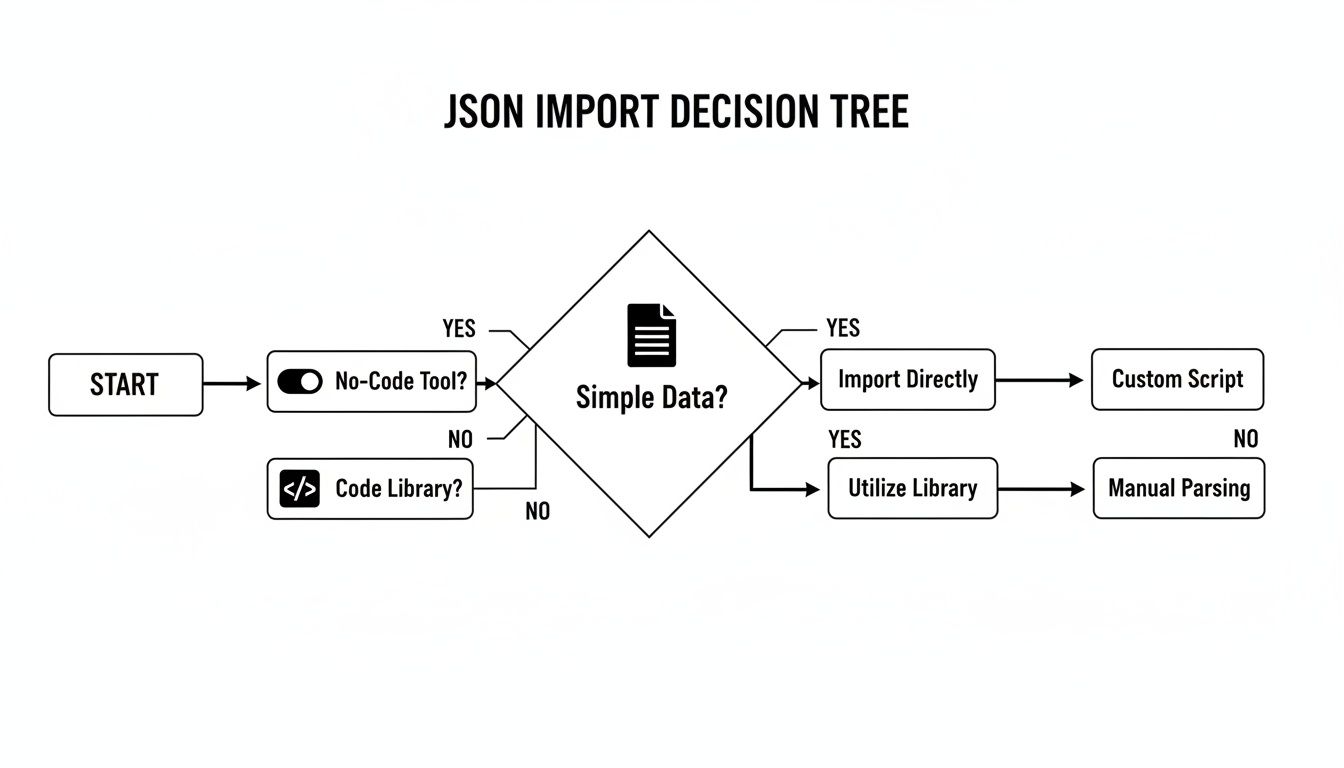
As you can see, the path you take hinges on how complex your data is and your own comfort level with code.
To make it even clearer, here’s a quick comparison of the main ways to get JSON data into your spreadsheet. Use this to find the best fit for your project.
| Method | Best For | Complexity | Flexibility |
|---|---|---|---|
=IMPORTDATA | Simple, flat CSV or TSV files (not true JSON). | Low | Very Low |
| IMPORTJSON Script | Pulling data from most public APIs with nested JSON. | Medium | Medium |
| Custom Apps Script | APIs needing authentication, pagination, or complex data flattening. | High | Very High |
| Marketplace Add-ons | Users who want a no-code, guided user interface. | Low | Varies by Add-on |
Ultimately, picking the right tool depends entirely on your specific needs—from a simple data pull to a complex, automated workflow.
Key Takeaway: The goal here is to stop treating your Google Sheet like a static file and start using it as a live dashboard. By connecting directly to a JSON source, you’re creating a single source of truth that can power everything from quick reports to sophisticated analytical models.
While Google Sheets has some decent built-in functions, they often buckle under the pressure of real-world JSON from APIs. This is where the community provides a much better way. For years, the undisputed champion for a true google sheets import json workflow has been a custom script.
One of the most popular and time-tested solutions is the open-source ImportJSON script by Brad Jasper. This code adds a new =ImportJSON() function to your spreadsheet, letting you pull in JSON feeds from any URL.
For DeFi pros using Wallet Finder.ai, this is a game-changer. Imagine pulling real-time JSON data on top Ethereum wallets' PnL directly into your sheet. In fact, over 70% of on-chain analysts rely on Sheets for this kind of work, and this method can slash import time by a staggering 80% compared to clumsy manual exports.
Getting this set up is a quick, one-time copy-and-paste job. Once you do it for a spreadsheet, the =IMPORTJSON() function is yours to use forever in that file.
Step-by-Step Installation:
Code.gs file.ImportJSON.gs).That’s it. You can now close the script editor. The =IMPORTJSON() function is unlocked and ready to use in your sheet, just like any other formula.
Using the function is refreshingly simple. The basic syntax is =IMPORTJSON("API_URL"). This tells Sheets to fetch the JSON from your URL and spill the data into the cells below and to the right.
For a basic API that returns a flat list, this is often all you need. For example, to pull book data from a public API, the formula would be:=IMPORTJSON("https://mysafeinfo.com/api/data?list=bestnovels&format=json&rows=10")
Just like that, your sheet would be populated with columns for Author, Title, and Year.
Pro Tip: APIs aren't instantaneous. Don't be surprised if the function displays "Loading..." for a few moments. If it's taking an excessively long time or throws an error, the first thing to check is your URL. Make sure it's correct and doesn't require a private key you haven't provided.
The real magic of IMPORTJSON becomes clear when you're working with complex, nested JSON from most real-world APIs. You usually have to dig a few layers deep to get the data you need.
This is where the second argument, the path, comes in. The path acts like a map, telling the function exactly which part of the JSON structure you want to extract. You can also add an options parameter to fine-tune the import.
Useful Parameters for =IMPORTJSON()
| Parameter | Purpose | Example |
|---|---|---|
path | Pinpoints a specific nested object or array. | "/data/trades" |
noHeaders | Tells the function not to create a header row. | "noHeaders" |
noTruncate | Prevents the function from cutting off long text values. | "noTruncate" |
Let's say a Wallet Finder.ai API endpoint returns data where the trade history is nested inside results and then trades. You would use the path to grab it directly:=IMPORTJSON("https://api.walletfinder.ai/wallets/123", "/results/trades")
Mastering this is a non-negotiable skill for anyone serious about importing API data into Google Sheets. It gives you surgical precision over your data.
While custom functions like IMPORTJSON are fantastic, sometimes you hit a wall. For complex APIs that need authentication, have paginated results, or serve up gnarly nested data, you need ultimate control. That's when it's time to build your own importer with Google Apps Script.
Think of Apps Script as the engine under the hood of your spreadsheet. It’s JavaScript that runs on Google's servers, letting you talk to your sheet and just about any external service. This is how the pros build truly dynamic dashboards that pull from protected data sources.

No matter the task, every custom script I've built boils down to the same three fundamental steps. Understand this workflow, and you can adapt almost any code snippet to your needs.
The 3-Step Workflow:
UrlFetchApp service to make an HTTP request to your API endpoint. This is where you’ll plug in your URL and any required headers, like an API key.JSON.parse() to turn that text into a structured JavaScript object you can actually work with.getRange() and setValues().This process gives you total control at every stage.
Key Insight: Custom scripts transform your spreadsheet from a passive data container into an active application. Instead of just displaying data, it can now fetch, process, and manage it according to your exact rules.
The use of custom scripts for automating data imports has exploded. Automation tools have powered over 2 million workflow executions since 2022, a period where Solana's Total Value Locked (TVL) went through the roof. For DeFi analysts, this means scripts can automatically pull data from thousands of wallets—with some traders reporting 25% average PnL gains just by tracking smart money moves this way.
The biggest reason to graduate to Apps Script is to work with private APIs that require an API key. But just pasting your key directly into the code is a massive security mistake. The right way to do this is with Script Properties. This feature keeps sensitive info like API keys safe and sound.
How to Use Script Properties:
API_KEY) and paste your key as the value.Now, you can pull this key into your code securely with PropertiesService.getScriptProperties().getProperty('API_KEY'). This keeps your credentials separate from your code.
Not everyone wants to get their hands dirty with code. If you’d rather skip the Apps Script editor entirely, the Google Workspace Marketplace is your best friend. It’s loaded with add-ons that give you a simple, user-friendly interface to pull in API data.
These tools are perfect for marketers, analysts, or anyone who needs live data in their sheets but doesn't have the time or background to start scripting. They effectively turn your spreadsheet from a static document into a live, self-updating dashboard.
Dozens of tools are out there, but a few have earned a reputation for being reliable and feature-rich. API Connector by Mixed Analytics is a huge crowd favorite, giving you a guided setup to connect to just about any JSON API out there.
After installing it, you just open the sidebar and fill in the blanks:
Once set up, you run the request, and the data flows right into your sheet. The best part? Most of these add-ons have scheduling, so you can tell it to refresh the data every hour or every day automatically.

As you can see, these tools completely remove the need to look at code, offering a clean, step-by-step process instead.
When you’re picking an add-on, look past the basic features. They really differ on pricing, data limits, and how they handle more advanced scenarios.
| Feature | API Connector | Other Add-ons |
|---|---|---|
| User Interface | Guided sidebar wizard | Varies; some are less intuitive |
| Scheduling | Hourly, daily, weekly | Often limited on free plans |
| Pagination | Built-in handling | May require manual setup |
| Pricing Model | Freemium with paid tiers | Freemium or fully paid |
Another monster in this space is the
IMPORTJSONapp from NoDataNoBusiness. It started as a popular community script back around 2014 and has since grown to help over 500,000 users automate their JSON imports. Its usage even shot up 150% during the DeFi boom. You can check it out on the Google Workspace Marketplace.
For our Wallet Finder.ai example, an add-on is the most direct route. You could set up a request to pull the latest trades from a top wallet every hour. Your sheet would update automatically, feeding you real-time smart money moves without ever writing a line of code.
Let's move from theory to a real-world scenario: tracking a top-performing crypto wallet with Wallet Finder.ai. This is where you can see the true power of pulling live data directly into a spreadsheet.
Imagine you’ve spotted a wallet on Wallet Finder.ai with a killer profit and loss (PnL) record. Instead of checking it manually, you can automate it in Google Sheets to get a live, dynamic edge.
First, you need the API endpoint for the wallet. Inside the Wallet Finder.ai platform, every wallet we discover has an API call that serves up its entire transaction history in a clean JSON format.
For this walkthrough, let's say the API endpoint is:https://api.walletfinder.ai/wallets/0x123abc/trades
Hitting that URL would give you a JSON object with an array of trades. A simplified chunk of that JSON might look like this:
{"wallet": "0x123abc...","chain": "Ethereum","trades": [{"id": "T1","token": "WIF","action": "buy","amount": 1000,"price": 2.50},{"id": "T2","token": "PEPE","action": "sell","amount": 500000,"price": 0.000015}]}Our goal is to get that trades array into Google Sheets. If you've already installed the =IMPORTJSON() script, the formula is incredibly straightforward. Just pop this into cell A1 of a new sheet:
=IMPORTJSON("https://api.walletfinder.ai/wallets/0x123abc/trades", "/trades")
The /trades part is the magic key. It tells the function to skip the top-level info and just grab the nested trades array. The function will automatically create headers and fill the rows with every trade.
With the raw data flowing in, you can build out a dashboard on a separate tab using native Google Sheets functions like QUERY, SUMIF, and SPARKLINE.
Actionable Dashboard Ideas:
SUMIF formulas to add up the value of all buy and sell transactions and calculate a running PnL.QUERY function to display only the last 5 or 10 trades. For example: =QUERY(Data!A:E, "SELECT * ORDER BY E DESC LIMIT 5", 1)=SPARKLINE(A1:A30)Pro Tip: Put your data refresh on autopilot. Go to the Apps Script editor (
Extensions > Apps Script) and create a time-driven trigger. You can set it to run your import function every hour, turning your static report into a living, breathing wallet tracker.
To dive deeper into using APIs for crypto data, check out our guide on finding the best API for crypto prices.
Nothing’s more frustrating than a cryptic error message. When your google sheets import json process breaks down, don't panic. Most of these errors are quick to solve.
![]()
A #NAME? error is a classic. It means Google Sheets doesn't recognize the function you’re trying to use.
When using =IMPORTJSON(), this is a dead giveaway that the custom script wasn't installed correctly. To fix it:
ImportJSON.gs code is pasted in the editor.The more generic #ERROR! message is trickier. It means the function was found, but it failed to fetch the data. This usually points to a problem with the API itself.
Troubleshooting Checklist:
Pro Tip: Before debugging your sheet, paste the API URL directly into your browser's address bar. If you see JSON data, your URL is good. If you get an error message in the browser, the problem is with the API endpoint, not your script.
Sometimes the import "works," but your data is a disaster—all jammed into one column or structured incorrectly. This is a classic symptom of nested JSON.
The function has pulled in the data, but it doesn't know which specific part you want. You need to tell it where to look using the path parameter. For instance, if your data is buried inside a "results" object, change =IMPORTJSON("url") to =IMPORTJSON("url", "/results"). Experiment with different paths until you isolate the exact array of data you need.
At Wallet Finder.ai, we turn complex on-chain data into clear, actionable signals. Discover top wallets, track their every move, and get the edge you need to stay ahead in DeFi. Start your free trial today and see what smart money is doing right now at https://www.walletfinder.ai.