Recovery Factor Calculation for Smart Traders
Master the recovery factor calculation to measure a strategy's resilience. Learn the formula, see DeFi examples, and find top wallets with Wallet Finder.ai.

June 20, 2026


Wallet Finder
March 31, 2026
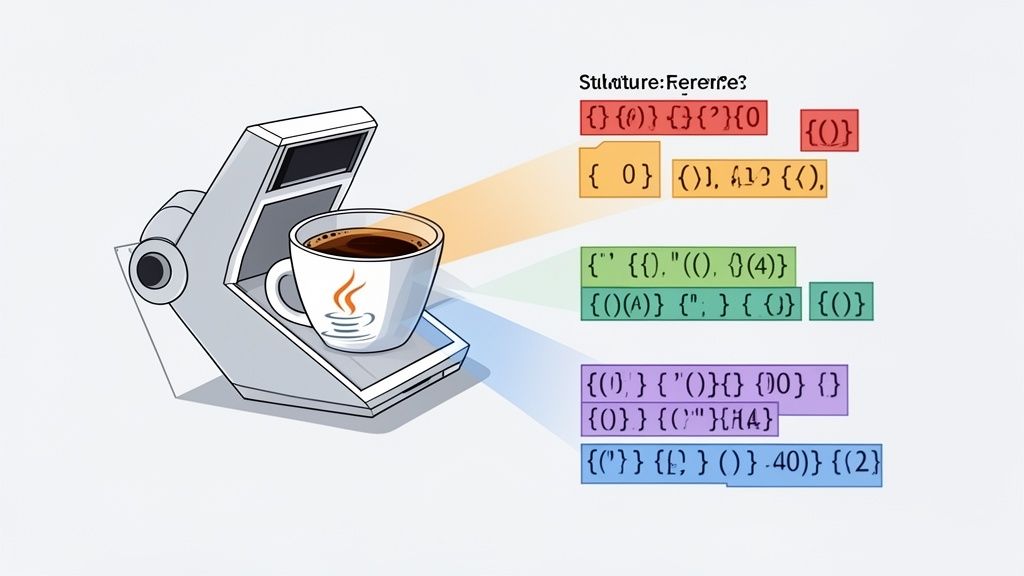
When you need to read text in Java—whether it’s from the console, a file, or a string—the Scanner class is often the first tool developers reach for. It's a go-to for a reason.
Part of the java.util package, Scanner acts as a simple text parser that can break down input into primitive types (like integers and doubles) and strings. It's incredibly handy for processing user input, reading configuration files, or handling in-memory data without a lot of fuss.
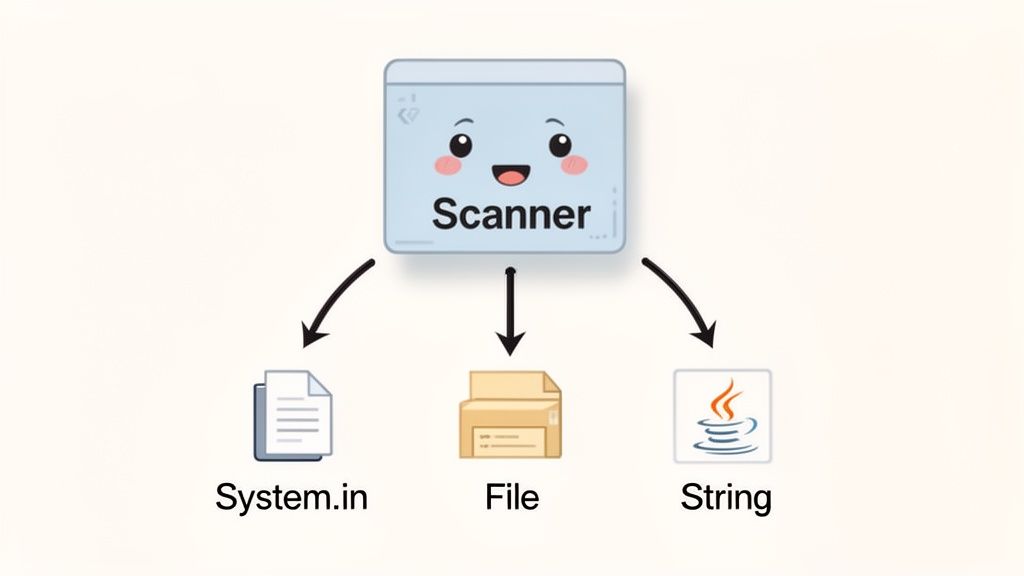
At its core, Scanner works by breaking down its input into individual tokens. Think of tokens as the chunks of data separated by a delimiter. By default, that delimiter is just whitespace, but you can customize it with regular expressions. This lets you process structured text without having to manually manage byte streams or character arrays.
Introduced way back in Java 5.0 (September 2004), the Scanner class was a huge step up from the older StringTokenizer. It provided a much more powerful way to parse complex strings using regex. Early benchmarks from Oracle in 2010 even showed it could deliver up to 40% faster parsing speeds on certain tasks compared to legacy methods. If you're curious about how it stacks up today, you can check out current developer trends in the Azul 2026 State of Java Survey Report.
The scanner api in java remains a developer favorite due to its simplicity and flexibility, especially when raw performance isn't the top priority.
Scanner for interactive command-line tools, small configuration files, and quick data parsing tasks.nextInt(), nextDouble(), and nextLine() without writing boilerplate parsing code.System.in)File objectsString dataOf course, Scanner isn’t a silver bullet. For high-performance applications that read massive files, its convenience comes with some overhead. In those scenarios, a BufferedReader is often the better tool for the job.
To help you choose the right tool, here's a quick look at how Scanner and BufferedReader compare.
| Feature | Scanner | BufferedReader |
|---|---|---|
| Ease of Use | High (direct methods for types) | Moderate (requires manual parsing) |
| Performance | Good (but has overhead) | Excellent (faster for large files) |
| Flexibility | High (custom delimiters, locale-aware) | Low (reads lines or characters) |
| Best For | User input, small files, mixed data types | Large files, fixed-format data, raw speed |
This table should give you a solid starting point. If you need simplicity for user input or parsing small, structured files, Scanner is your friend. If you’re processing gigabytes of log data, you’ll want the raw speed of BufferedReader.
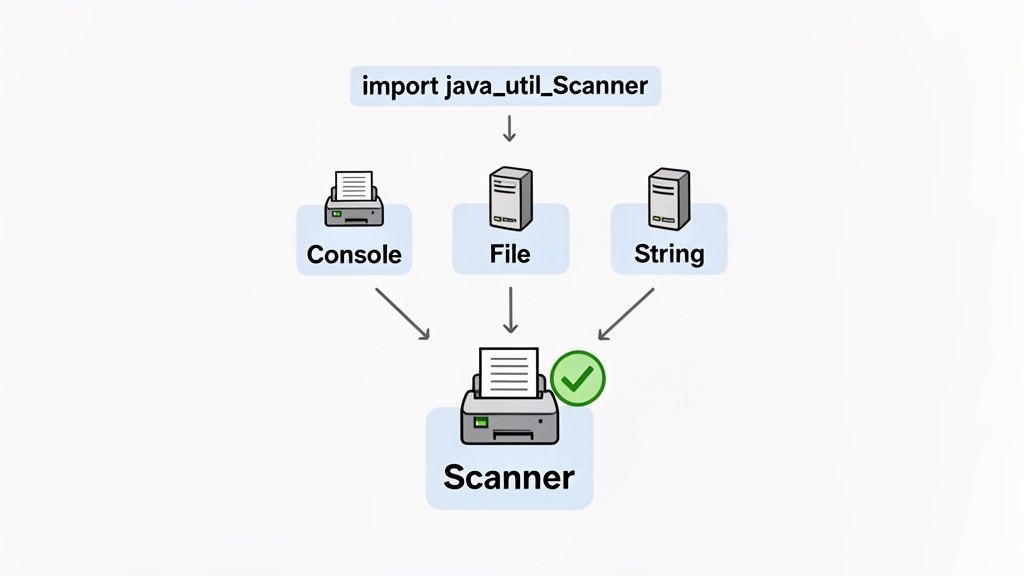
Getting started with the scanner api in java is a foundational skill. It begins with a simple import statement and follows a repeatable pattern: create the Scanner, use it to parse data, and then close it to free up resources. Mastering this workflow is as essential as knowing how to get a Google Sheets API key for data automation.
Here is an actionable three-step process:
import java.util.Scanner; to your file.Scanner object pointing to an input source (e.g., new Scanner(System.in)).next() and hasNext() methods to read data, then call close() or use a try-with-resources block to release the resource.The most common use for Scanner is to grab input directly from a user. Simply create a Scanner object that wraps the standard input stream, System.in.
This is the bread and butter for interactive command-line applications.
import java.util.Scanner;public class ConsoleReader {public static void main(String[] args) {// 1. Create a Scanner for console inputtry (Scanner scanner = new Scanner(System.in)) {System.out.print("Enter your name: ");// 2. Read the next line of inputString name = scanner.nextLine();System.out.println("Hello, " + name + "!");// 3. The scanner is closed automatically by try-with-resources}}}You can also use Scanner to parse data straight from a file. This is great for processing log files or configurations. Just create a java.io.File object and pass it to the Scanner constructor.
Crucially, file I/O operations can throw a FileNotFoundException, so you must handle it with a try-catch block.
import java.io.File;import java.io.FileNotFoundException;import java.util.Scanner;public class FileReader {public static void main(String[] args) {File myFile = new File("data.txt");// Use try-with-resources for automatic closingtry (Scanner scanner = new Scanner(myFile)) {while (scanner.hasNextLine()) {String line = scanner.nextLine();System.out.println(line);}} catch (FileNotFoundException e) {System.out.println("Error: File not found.");e.printStackTrace();}}}Pro Tip: Always wrap file-based
Scannerinstances in atry-with-resourcesblock. This modern Java practice guaranteesscanner.close()is called for you, preventing resource leaks even if an exception is thrown. It makes your code safer and cleaner.
To master the scanner API in Java, you need to understand its two main method families:
next() family: Reads and consumes data from the input.hasNext() family: Checks if the next piece of data matches the expected type without consuming it.The secret to solid input handling is using these two families together. First, peek ahead with a hasNext...() method to verify the token. If it returns true, confidently call the matching next...() method to grab the value, avoiding an InputMismatchException.
next() FamilyThe next() methods are the workhorses of the Scanner class. Each one finds and returns the next token, automatically converting it to a specific data type. Remember, the default separator between tokens is whitespace.
| Method | What It Does | Example Use Case |
|---|---|---|
next() | Grabs the next complete token as a String. | Reading a single word. |
nextInt() | Scans and parses the next token as an int. | Reading a user's age. |
nextDouble() | Scans and parses the next token as a double. | Reading a price. |
nextLine() | Reads all text until the next line break (\n). | Reading a full address. |
Here’s a quick look at how you might read different data types from a simple string.
import java.util.Scanner;public class DataReader {public static void main(String[] args) {String data = "product_id 12345 99.99";try (Scanner scanner = new Scanner(data)) {// Read the string token "product_id"String label = scanner.next();// Read the integer token "12345"int id = scanner.nextInt();// Read the double token "99.99"double price = scanner.nextDouble();System.out.println("Label: " + label);System.out.println("ID: " + id);System.out.println("Price: " + price);}}}hasNext() FamilyCalling next...() methods without checking first is risky. If a user types "twenty" when you expect 20, your program will crash. The hasNext() methods prevent this by letting you preview the next token.
Key Insight: Always use a
hasNext...()check before anext...()call when you can't trust the input source (like a user). This defensive habit is the single most reliable way to avoid bothInputMismatchExceptionandNoSuchElementException.
These methods return a boolean, making them perfect for if conditions and while loops.
| Method | Description | Return Type |
|---|---|---|
hasNext() | Returns true if the scanner has another token. | boolean |
hasNextInt() | Returns true if the next token can be an int. | boolean |
hasNextDouble() | Returns true if the next token can be a double. | boolean |
hasNextLine() | Returns true if there is another line in the input. | boolean |
When you put validation and reading together, you can build bulletproof input loops. This example safely asks for an age and won't proceed until it gets a valid number.
import java.util.Scanner;public class SafeInputLoop {public static void main(String[] args) {try (Scanner scanner = new Scanner(System.in)) {System.out.print("Please enter your age: ");while (!scanner.hasNextInt()) {System.out.println("That's not a valid number. Please try again.");scanner.next(); // Important: Consume the invalid tokenSystem.out.print("Please enter your age: ");}int age = scanner.nextInt();System.out.println("You are " + age + " years old.");}}}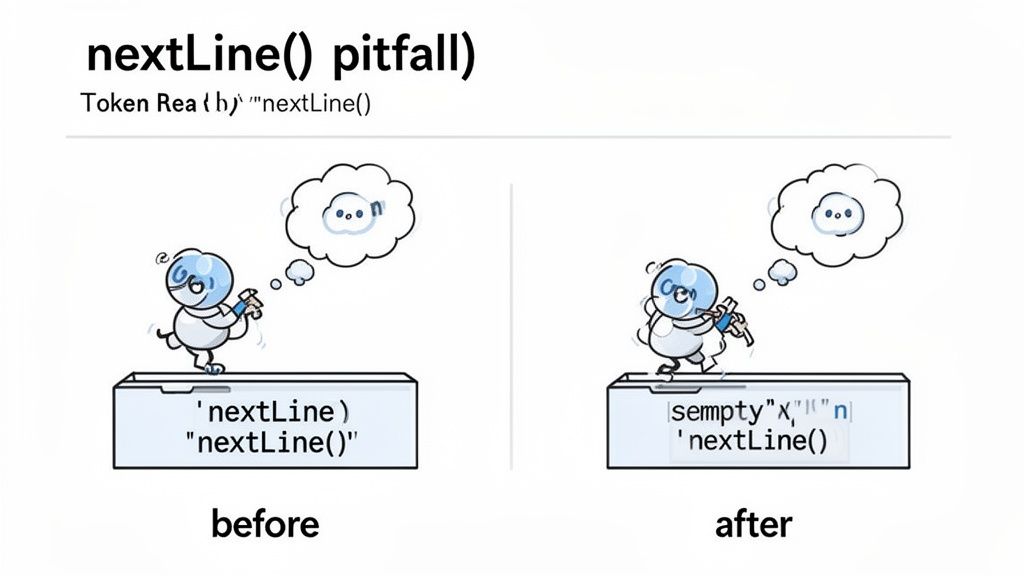
If you've worked with the Scanner API in Java, you've likely hit the notorious nextLine() pitfall. The scenario is common: you mix nextInt() with nextLine(), and your program appears to skip user input, leaving you with an empty string.
The root cause is how Scanner handles the input buffer. nextInt() reads just the number, leaving the "enter" key's newline character (\n) behind.
Let's break down what's happening behind the scenes.
42 and hits Enter. The input buffer contains 4, 2, and \n.nextInt() call: The method reads 4 and 2, parses them, and returns the integer 42.\n is Left Behind: The newline character remains in the buffer.nextLine() call: This method reads until it finds a newline. Since one is already there, it consumes it immediately and returns an empty string, never waiting for the user.This code snippet shows the problem in action.
import java.util.Scanner;public class NextLinePitfall {public static void main(String[] args) {Scanner scanner = new Scanner(System.in);System.out.print("Enter your age: ");int age = scanner.nextInt(); // Reads "42", leaves "\n"System.out.print("Enter your name: ");// This nextLine() call reads the leftover "\n" and returns ""String name = scanner.nextLine();System.out.println("Age: " + age);// The name variable will be emptySystem.out.println("Name: '" + name + "'");scanner.close();}}The fix is simple: consume the leftover newline character. Place an extra call to scanner.nextLine() right after your nextInt() or nextDouble() call. This clears the buffer, preparing it for the actual line you want to capture next.
Key Takeaway: After reading a number with
nextInt()or a similar method, always add ascanner.nextLine()to clear the buffer before trying to read a full line. This one little line is the most reliable way to sidestep this common bug.
Let's patch up our previous example.
import java.util.Scanner;public class NextLineSolution {public static void main(String[] args) {Scanner scanner = new Scanner(System.in);System.out.print("Enter your age: ");int age = scanner.nextInt();// THE FIX: Consume the leftover newline characterscanner.nextLine();System.out.print("Enter your name: ");// This call now correctly waits for user inputString name = scanner.nextLine();System.out.println("Age: " + age);System.out.println("Name: '" + name + "'");scanner.close();}}Adding this single line makes your interactive code far more robust and predictable.
While Scanner is great for simple whitespace-separated data, its true power emerges when you customize its parsing behavior with methods like useDelimiter() and useLocale().
These customizations are a game-changer for parsing structured data like comma-separated values (CSV) or numbers formatted for different parts of the world.
useDelimiter()The useDelimiter() method lets you redefine what separates data. It accepts a regular expression, so you can set the delimiter to a comma, semicolon, or a more complex pattern. This is incredibly useful for parsing files like CSVs on the fly.
For instance, to parse the string 10,20,30,40, you can tell Scanner to use a comma as the delimiter.
import java.util.Scanner;public class DelimiterExample {public static void main(String[] args) {String data = "10,20,30,40";try (Scanner scanner = new Scanner(data)) {// Set the delimiter to a commascanner.useDelimiter(",");System.out.println("Parsing comma-separated values:");while (scanner.hasNextInt()) {System.out.println(scanner.nextInt()); // Prints 10, 20, 30, 40}}}}useLocale()Numeric formats vary globally. For example, "one thousand two hundred thirty-four and fifty-six cents" is written as 1,234.56 in the US but as 1.234,56 in Germany. The useLocale() method makes your Scanner aware of these regional conventions.
By setting a
Locale, you tell theScannerhow to correctly interpret numbers, dates, and currency for a specific region. This helps avoidInputMismatchExceptionerrors when your application is used internationally.
This table shows how useLocale() changes the parsing outcome:
| Input String | Locale.US | Locale.GERMANY |
|---|---|---|
"1,234.56" | Parses as 1234.56 | Throws InputMismatchException |
"1.234,56" | Throws InputMismatchException | Parses as 1234.56 |
Getting these details right is critical for robust global applications, much like how a crypto arbitrage scanner must understand different quoting conventions across global exchanges.
While Scanner is convenient, that ease of use comes with a performance trade-off. Under the hood, it handles complex parsing with regular expressions and synchronization, adding overhead that can slow things down.
For tasks where raw speed is the priority—especially reading large files—BufferedReader is almost always the better choice. It reads large chunks of data into a buffer, drastically reducing expensive I/O calls, and avoids the regex overhead of Scanner.
When should you use Scanner? It boils down to the job. It's perfect for interactive console apps or small, structured files where development speed is more important than raw execution speed. For performance-critical work, like processing a multi-gigabyte log file, BufferedReader is the clear winner.
This decision tree gives you a visual guide for picking the right tool.
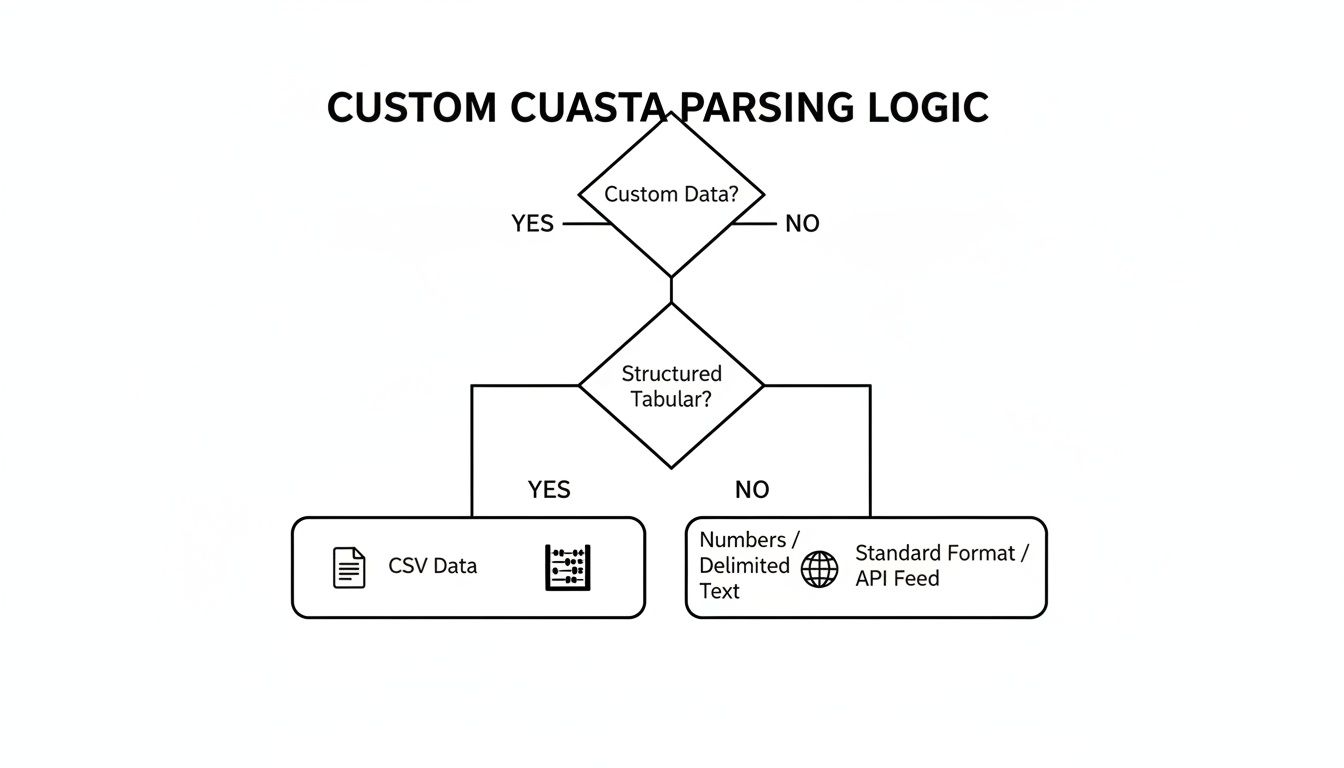
Understanding these performance differences is critical for high-frequency operations where every millisecond counts. To learn more about how system limits impact application speed, check out our guide on understanding API rate limits.
Here’s a quick reference table to help you decide which input tool is right for your Java application.
| Scenario | Recommended Tool | Reasoning |
|---|---|---|
| Reading console input from a user | Scanner | Simplifies parsing of different data types (int, double, string). |
| Parsing a large log file (>100MB) | BufferedReader | Significantly faster due to a larger buffer and no parsing overhead. |
| Reading a small CSV file | Scanner with useDelimiter() | The flexibility of custom delimiters makes parsing structured data easy. |
| Competitive programming challenges | Scanner | Ease of use and development speed are prioritized over raw performance. |
Choosing the right tool from the start saves you from performance headaches later.
The Scanner class is useful, but a few tricky behaviors can catch developers off guard. Let's clear up common points of confusion.
Simply put, no. The Scanner class is not thread-safe.
It maintains an internal state (buffer position, cached data) without synchronization. Using the same Scanner instance across multiple threads without external locking will lead to race conditions and corrupted data.
Actionable Solution: If you must use a Scanner across threads, wrap every call to it inside a synchronized block to ensure only one thread can access it at a time.
scanner.close()?Forgetting to call scanner.close() on a file or network stream Scanner causes a resource leak. The underlying file handle or network connection remains open, tying up system resources.
Actionable Solution: Always declare your Scanner inside a try-with-resources block. This guarantees close() is called for you automatically.
try (Scanner scanner = new Scanner(new File("input.txt"))) {// Read from the file here...} catch (FileNotFoundException e) {// Handle the missing file exception...}The one exception is System.in. Never close a Scanner wrapped around System.in, as this will close the standard input stream for your entire application.
You can't. A Scanner is a forward-only reader. Once it consumes data, that data is gone. There's no built-in method to reset it.
Actionable Solution: If you need to re-process the same input, create a new Scanner instance. For a File or network stream, this means reopening the source to get a fresh stream for your new Scanner.
At Wallet Finder.ai, we turn complex on-chain data into clear, actionable signals. Discover profitable wallets, track smart money trades in real time, and mirror winning strategies before the market moves. Start your 7-day trial and gain an edge at https://www.walletfinder.ai.

A premier DeFi analytics platform empowering traders to discover and analyze profitable blockchain wallets, trades and tokens.