Unlocking Sol Sage Energy: A Trader's Guide
What is Sol Sage Energy? Learn how to harness Solana's market momentum and track smart money with this guide to on-chain analysis and wallet tracking tools.

March 26, 2026
Wallet Finder

March 26, 2026

Ever feel like you're manually copy-pasting crypto data into a spreadsheet? What if you could turn that static sheet into a live, automated crypto research terminal? That’s exactly what a Google Sheets API key lets you do. At Wallet Finder.ai, it’s the essential bridge for pulling real-time, on-chain data directly into the familiar grid of Google Sheets.

Think of a Google Sheets API key as a unique password that lets other apps read data from your public spreadsheets without needing your Google login. It's the perfect starting point for automating data pulls before you dive into more complex authentication methods like OAuth.
For crypto traders, this is a massive time-saver. Forget about the tedious task of tracking token prices or wallet transactions by hand. You can set it all up to run automatically, creating powerful dashboards that keep you ahead of the market.
Google Sheets has become a powerhouse for a reason. Its user base hit 1.1 billion worldwide in 2026, and it now integrates with over 120 external apps, making it a central hub for modern workflows. You can find more details on the impressive growth of Google Sheets and its impact on data analysis here.
For DeFi traders at Wallet Finder.ai, this means we can pipe on-chain data from Ethereum or Solana wallets directly into a spreadsheet. It’s how we track P&L, monitor smart money, and find our edge.
You can do the same by exporting datasets from tools like Wallet Finder.ai to build custom charts for analyzing your entry timing or position sizing. To really level up, check out our guide on using an API for crypto prices to supercharge your sheets.
The real advantage is turning raw on-chain events into actionable signals right inside your spreadsheet. Automated, real-time insights give you a significant edge in a fast-moving market.
With an API key, you're not just using a spreadsheet; you're building an automated crypto intelligence hub. Whether you're tracking the latest memecoin trends or mirroring the moves of top wallets, the Google Sheets API is a tool you can't afford to ignore.
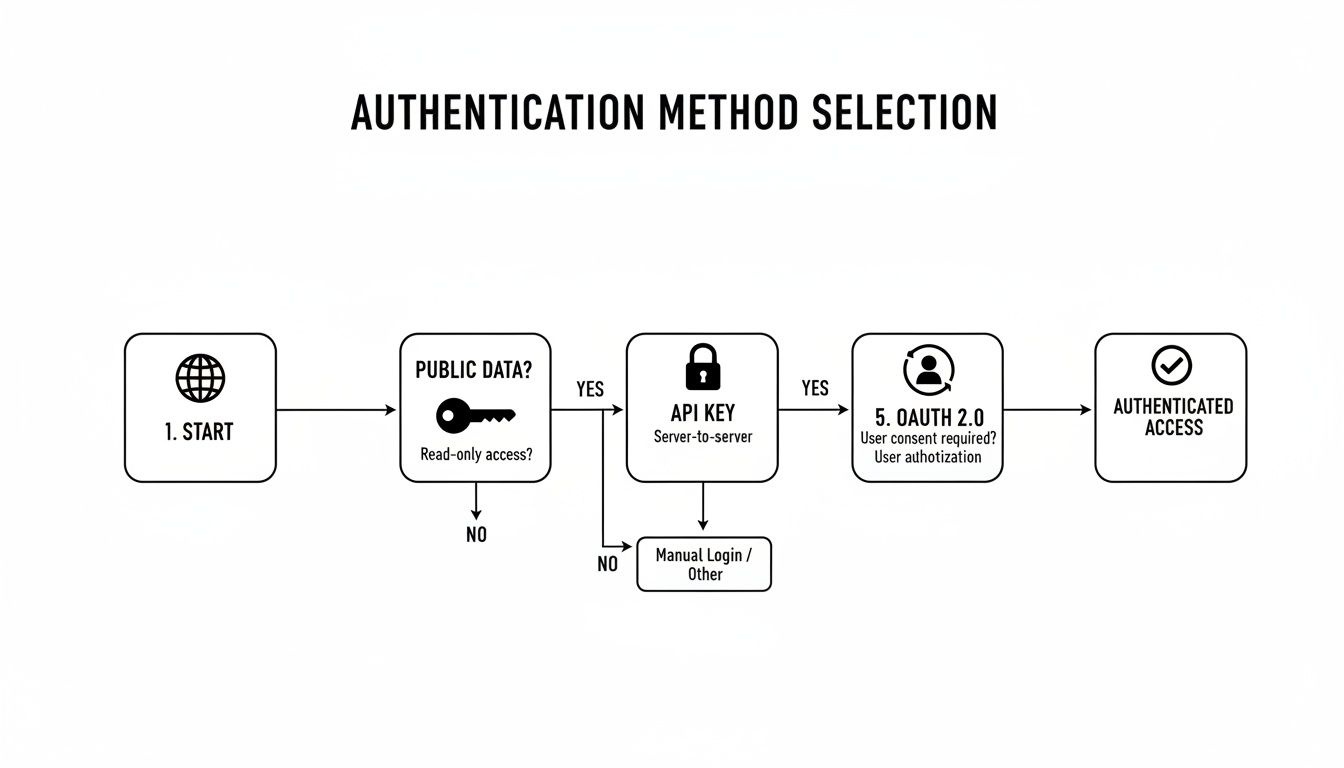
Before you even think about generating a key, let's talk strategy. Picking the right authentication for your Google Sheets project is a crucial first step. Getting this wrong can lead to major security headaches or functional dead-ends.
The choice boils down to one simple question: are you accessing public data, or do you need to access private, user-specific data?

Use this table to quickly decide which authentication method fits your crypto data project.
| Feature / Use Case | API Key (Read-Only, Public) | OAuth 2.0 (Read & Write, Private) |
|---|---|---|
| Access Type | Read-Only | Read & Write |
| Data Scope | Public Data Only | Public & Private User Data |
| Common Use | Pulling public data into a dashboard | Modifying a user's personal spreadsheet |
| Security Model | Identifies the requesting project | Authorizes the app on behalf of a user |
| Complexity | Simple (one key) | Complex (consent screen, tokens) |
| Example Project | A script that tracks public whale wallet movements from a shared Google Sheet. | An app that helps users manage and update their personal crypto portfolio Sheet. |
Key Takeaway: An API key only grants read-only access to public data. If you need to write, edit, or delete anything in a Sheet—public or private—you have to use OAuth 2.0. This is a non-negotiable security rule.
In short, your project's data requirements—public read-only vs. private read/write—will always point you to the right authentication method. Choose wisely from the start to avoid problems later.
Alright, you've landed on using an API key. Smart choice for public data. Now, let’s get that key generated and, more importantly, locked down inside the Google Cloud Platform. The creation part is quick, but please don’t skip the security steps—an unsecured key is a wide-open invitation for trouble.
Follow these actionable steps to create and secure your key. Everything starts in the Google Cloud Platform (GCP) console.
Create or Select a Project:
Enable the Google Sheets API:
Generate the API Key:
Restrict Your API Key (CRITICAL STEP):
An unrestricted API key is a massive security hole. If someone finds it, they can use it as if they were you, draining your project's quotas. Always restrict your keys. For more on this topic, see our guide on conducting a security audit for your website.
By spending a few extra minutes on these restrictions, you’ve properly protected your project. You now have a secure Google Sheets API key ready for action.

Alright, you’ve got your secured Google Sheets API key. Now for the fun part—actually using it. This is where we go from basic setup to pulling live data directly into your spreadsheets. For any crypto analyst, this is how you turn a static sheet into a powerful, automated dashboard.
We’ll look at two great methods: a simple REST API call for quick data grabs and a more robust Google Apps Script for full automation.
The fastest way to test your API key is with a direct REST API call. We'll use cURL, a command-line tool for making web requests.
Required Information:
https://docs.google.com/spreadsheets/d/SPREADSHEET_ID/edit#gid=0'Sheet1'!A1:C10).Here is the cURL command structure:
curl "https://sheets.googleapis.com/v4/spreadsheets/YOUR_SPREADSHEET_ID/values/'Sheet1'!A1:C10?key=YOUR_API_KEY"Just swap YOUR_SPREADSHEET_ID and YOUR_API_KEY with your actual values. Running this command will instantly return the data from those cells in JSON format, perfect for quick checks or integration tests.
For true automation, Google Apps Script is the answer. It's a JavaScript platform built into Google Sheets that lets you run scripts on a schedule. This is how you create a self-updating dashboard.
Let's build a script to fetch crypto data from an external API, like one from Wallet Finder.ai, and place it in your sheet.
Step-by-Step Script Implementation:
function fetchCryptoData() {const sheet = SpreadsheetApp.getActiveSpreadsheet().getSheetByName("CryptoData");// This is the key for the EXTERNAL service, not your Google API keyconst externalApiKey = "YOUR_EXTERNAL_API_KEY";const externalApiUrl = "https://api.example.com/v1/tokens?limit=10"; // Replace with your target APIconst options = {'method' : 'get','headers' : {'Authorization' : 'Bearer ' + externalApiKey}};const response = UrlFetchApp.fetch(externalApiUrl, options);const data = JSON.parse(response.getContentText());// Clear previous datasheet.getRange("A2:C11").clearContent();// Prepare data for the sheet in a 2D arrayconst rows = data.tokens.map(token => [token.name, token.symbol, token.price]);// Write new data to the sheet efficientlysheet.getRange(2, 1, rows.length, rows[0].length).setValues(rows);}fetchCryptoData, choose "Time-driven" as the event source, and set your desired frequency (e.g., "Hour timer," "Every hour").You've just built a live data feed that keeps your crypto dashboard up-to-date automatically.
Your Google Sheets API key is powerful, but it’s not unlimited. Google sets firm usage quotas to ensure stability. Ignoring these limits leads to the dreaded 429: Too Many Requests error, which can freeze your script and cause you to miss crucial market data.
To keep things running smoothly, the Google Sheets API has usage caps. The most important ones are:
| Quota Type | Limit |
|---|---|
| Read requests per minute per project | 300 |
| Write requests per minute per project | 300 |
| Read requests per minute per user per project | 60 |
| Write requests per minute per user per project | 60 |
Exceeding these limits triggers a 429 error. Your quota refills after a one-minute cooldown. You can find all the details in Google's official API documentation.
To stay safely within your quotas, you must code efficiently.
batchUpdate request. To Google, this entire batch counts as just one API call against your quota.429 error, don't retry immediately. Implement an exponential backoff algorithm. This means you wait for a short, random interval (e.g., 1 second) before retrying. If it fails again, you double the wait time (2 seconds, then 4, and so on) until the request succeeds. This prevents you from hammering the server and gives it time to recover.By combining batch requests with exponential backoff, you build a system that is both highly efficient and incredibly resilient. It keeps your API calls to a minimum and ensures that temporary rate limits won't derail your entire workflow.
You can't manage what you don't measure. The Google Cloud console provides a dashboard for monitoring API usage and spotting problems early.
Here you can view your request volume over time. Proactively set up billing alerts that notify you when your usage approaches the limit. This gives you time to optimize your code before you hit errors. For more tips, check our guide on how to handle API rate limits effectively.
Working with the Google Sheets API is powerful, but a few common hang-ups can stop you in your tracks. Here are answers to the most frequent questions.
| Question | Answer & Actionable Tip |
|---|---|
| Sheet ID vs. Sheet Name? | Sheet Name is the tab title ("Crypto Trades"). Sheet ID (GID) is the number in the URL (gid=12345). Action: Always use the GID in your API calls. It's a permanent identifier, whereas a Sheet Name can be changed, which would break your script. |
Why am I getting a 403 Permission Denied error? | This usually means one of two things: 1. The Sheet is private (it must be shared with "Anyone with the link"). 2. You forgot to enable the Sheets API in your Google Cloud project. Action: Check your sheet's sharing settings and verify the API is enabled in your GCP dashboard. |
| Can I write data with an API Key? | No. An API key is strictly for read-only access to public data. Action: To write, edit, or delete data, you must use the OAuth 2.0 flow, which securely asks the user for permission to modify their private sheets. |
Ready to stop guessing and start tracking the market's smartest players? Wallet Finder.ai gives you the on-chain data and wallet tracking tools to turn these API techniques into profitable strategies. Discover top wallets, mirror their trades in real time, and get the edge you need. Start your 7-day trial at https://www.walletfinder.ai.