Master Candlestick Chart Google Sheets for Crypto

Wallet Finder

Blank calendar icon with grid of squares representing days.

April 11, 2026

You’re watching a token rip on one screen, a wallet feed on another, and a charting platform on a third. By the time you line up price action with wallet entries, the move is already extended.

This is why traders end up building a candlestick chart google sheets workflow. It’s not because Sheets is glamorous. It’s because a spreadsheet can become the one place where raw crypto data, wallet exports, and chart logic all live together.

Generic tutorials usually stop at stock examples and manual data entry. Crypto trading doesn’t work that way. You need price structure that updates, a chart you can reshape fast, and a setup that helps you compare what wallets did against what the market printed.

Why Your Trading Workflow Needs a Custom Chart

A fast crypto trade rarely breaks because the idea was bad. It usually breaks because the workflow was slow.

You spot a wallet accumulation on one tab, check price on another, then flip to a chart to see whether the move already stretched. That delay is enough to turn a clean entry into a chase. In crypto, especially around low-float tokens and fast Solana rotations, the market often moves before you finish cross-checking your tools.

A custom Google Sheets chart fixes that workflow problem by putting price structure beside the data that drives your decisions. Instead of treating charting, wallet activity, and notes as separate tasks, you can view them in one place and judge the setup faster.

That changes the quality of the trade.

A line chart only shows the closing path. A candlestick chart shows the open, high, low, and close for each interval, so you can see whether buyers held the close, whether sellers forced a wick rejection, and whether volatility expanded right where smart money entered. Those details matter when you are comparing a wallet buy from Wallet Finder.ai with the candle that printed around it.

Crypto makes this more useful than generic spreadsheet tutorials admit. Stock examples often assume delayed or static data, clean market hours, and one exchange feed. Crypto trades around the clock, price can differ across venues, and token data from APIs often arrives messy. Building your own chart in Sheets gives you control over timeframe, source, and annotations, which is exactly what you need if you want to line up wallet behavior with real market structure instead of reading them in isolation.

I use custom Sheets charts for one reason. They reduce interpretation lag.

If a tracked wallet buys into a breakout candle that closes near the high, that means something different from a wallet buy that lands after a long upper wick and weak close. Both are buys. Only one gives a cleaner read on momentum. A custom chart helps you catch that distinction before the trade is gone.

If you want a crypto-specific primer before building your own system, this guide to a candlestick chart for cryptocurrency gives useful context.

Sourcing and Structuring Your Crypto OHLC Data

The chart only works if the table is clean. Most broken candlestick charts in Sheets come from bad structure, not bad chart settings.

Crypto makes this worse because data often arrives from APIs, CSV exports, scraped pages, or copied exchange tables. Each source names columns differently, timestamps differently, and sometimes flips high and low if you’re not careful.
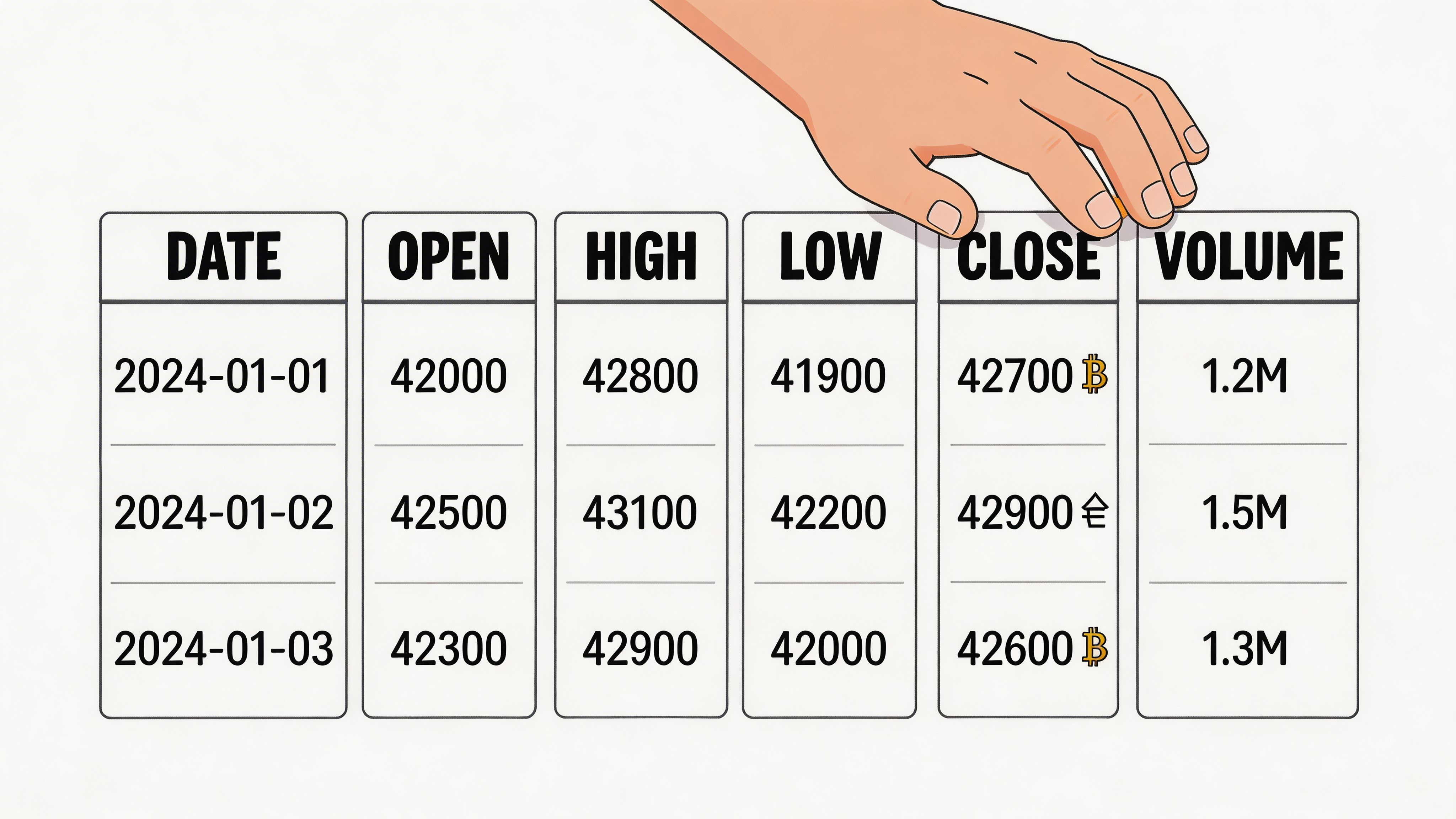
A hand interacting with a digital financial table displaying daily market data for Bitcoin price trends.

Use the exact structure Google Sheets expects

A standard setup uses five columns:

ColumnWhat goes in it
ADate
BOpen
CHigh
DLow
EClose

This is the baseline format most users should start with when creating a candlestick chart in Google Sheets. The core workflow is to organize data in that five-column layout, select the range, go to Insert > Chart, and choose the candlestick option, which is often tucked under Other. The date column should be plain text to avoid formatting problems (candlestick chart setup in Google Sheets).

A lot of traders miss that plain-text date requirement. Sheets loves auto-formatting dates. Candlestick charts often don’t.

If your dates look clean to your eye but the chart still won’t render, assume Sheets has converted something.

Why crypto data needs extra cleanup

Most published guides cover static stock examples. They don’t spend enough time on automated crypto imports. That’s a gap, because DeFi traders need live or near-live OHLC data for assets on chains like Ethereum and Solana. Generic tutorials focus on manual structuring and static insertion, but don’t really address pulling crypto prices from sources such as CoinGecko or Binance with IMPORTDATA or Apps Script. That leaves copy traders with more manual work when they’re trying to visualize wallet PnL, entry timing, or memecoin runs (gap in existing candlestick tutorials for crypto data imports).

Here’s what usually needs cleanup before charting:

  • Timestamp normalization
    Exchange exports may use Unix time, ISO strings, or local timezone text. Pick one display format and keep it consistent.

  • Numeric cleanup
    Remove symbols, commas in the wrong locale, and blank rows. Candlestick charts expect actual numeric cells.

  • Column remapping
    API payloads often return t, o, h, l, c or timestamp, open, close, high, low. Don’t assume the order is chart-ready.

  • Granularity control
    A one-minute feed can produce clutter quickly. If you’re studying swing structure, aggregate before charting.

Common crypto data sources that work

You have a few practical routes, depending on how manual or automated you want the workflow to be.

Public API pulls

For historical crypto prices, public APIs are usually the cleanest source. They give you machine-readable data, which means fewer copy-paste errors and easier refresh logic.

Typical workflow:

  1. Pull raw market data into a Raw tab.
  2. Use formulas or queries to map it into chart-ready OHLC columns.
  3. Feed only the cleaned range into the chart.

If you’re evaluating API options, this guide to an API for crypto prices is a practical starting point.

Exchange exports

CSV exports can work well for backtesting or one-off studies. The trade-off is freshness. They’re good for post-trade review, not ideal for live monitoring.

Use these when you want to study:

  • wallet accumulation before breakout
  • repeated wick reactions at a level
  • how often a token closes above prior highs

Wallet-linked trading data

This approach provides significant utility for on-chain analysis. Instead of charting only market price, you can chart price alongside wallet activity windows.

A strong workflow looks like this:

TabPurpose
RawImported export, API response, or copied transaction data
CleanedStandardized timestamps, remapped OHLC, filtered rows
ChartFinal range and chart objects
NotesSetup tags, catalyst notes, wallet behavior observations

That separation matters. Raw data should stay untouched. Once you start editing the import directly, it becomes harder to audit mistakes.

What works and what doesn’t

Here’s the practical version.

What works

  • Keeping source data separate from chart data
  • Converting dates before creating the chart
  • Renaming columns clearly
  • Testing with a short sample first

What doesn’t

  • Building the chart on top of messy imports
  • Mixing text and numeric price cells
  • Letting Sheets guess your date format
  • Pasting fresh rows into the middle of an existing chart range

The cleaner your table, the less you’ll blame the charting tool for your own data issues.

Building Your Google Sheets Candlestick Chart

Once the table is clean, the actual chart build is simple. The hidden part is that Google Sheets doesn’t always surface the candlestick option immediately.

Start with the final chart-ready table, not the raw import.

A step-by-step infographic showing how to create a candlestick chart in Google Sheets.

Click path that usually works

Use this order:

  1. Highlight the entire range, including headers.
  2. Open Insert.
  3. Click Chart.
  4. Wait for Google Sheets to generate a default chart.
  5. Open the Chart editor.
  6. Change Chart type to Candlestick chart.

In many Sheets layouts, the candlestick option sits below the common chart types, often under an Other grouping rather than the first visible list.

What the chart should display

A proper candlestick chart should show:

  • a body for the open-to-close range
  • upper and lower wicks for the full high-to-low range
  • sequential periods laid out across the horizontal axis

If your candles look compressed, missing, or weirdly uniform, that’s usually a data issue. It rarely means the chart type itself is broken.

A quick pre-flight checklist

Before you blame Google Sheets, verify these:

  • Headers included
    Select the header row with the data. Sheets often maps columns better when labels are present.

  • No gaps in the range
    Blank rows can break continuity.

  • Dates are text, not auto-parsed dates
    This is one of the most common causes of failed rendering.

  • All OHLC cells are numeric
    Even one stray text value can distort the result.

Here’s a compact audit table you can use:

| Check | Good state | Bad state |
|---|---|
| Date column | Plain text entries | Mixed date formats |
| Price cells | Numeric only | Symbols or text mixed in |
| Row order | Sequential | Random or duplicated periods |
| Selection | Full data block with headers | Partial range |

What to customize first

Don’t start with colors. Start with legibility.

The first edits I make are:

  • chart title
  • horizontal axis labels
  • gridline visibility
  • background contrast

Those changes make the chart readable before you add any advanced logic.

A chart that looks “professional” but hides the candles under heavy labels and dark styling is worse than a plain default chart.

If you’re new to Sheets charting, keep the first build boring. Get a clean render first. Then tune it for trading use.

Advanced Customization for Trader Analysis

A usable candlestick chart shows price. A trader-ready chart shows decision points.

In crypto, that difference matters fast. One wallet starts buying a low-float token, volume spikes for three candles, then the move retraces before the next hour closes. If your chart is cluttered, you miss whether that was continuation, absorption, or a failed breakout. Google Sheets can handle this analysis better than many traders expect, but only if you tune the chart around how you review setups.

A digital spreadsheet interface showing stock market analysis charts with a magnifying glass examining price data.

Use log scale for tokens with asymmetric moves

Linear scale breaks down quickly on crypto charts. A token that runs from 0.002 to 0.02 and then pulls back 30% can make the early structure look flat, even though that base often matters most.

Set the vertical axis to log scale when you are reviewing:

  • micro-cap tokens with large percentage swings
  • post-listing expansion phases
  • wallet accumulation before a breakout
  • retests after a vertical move

Google documents the available chart customization controls, including axis options, in its candlestick chart settings reference.

Log scale is not always better. For tight intraday ranges on liquid majors like BTC or ETH, linear often gives a cleaner read. The trade-off is simple. Use log to compare percentage movement across time. Use linear when absolute price levels matter more than proportional change.

Prioritize recent price action on monitoring dashboards

A research sheet and a live monitoring sheet should not look the same.

If the chart exists to watch wallets, track fresh token entries, or monitor reaction after an alert from Wallet Finder.ai, bias the layout toward recency. In practice, that means reducing the number of visible historical candles, widening the latest section of the chart, and keeping timestamps sparse enough that the last few bars are easy to read.

I usually avoid reversing the axis unless the sheet is purely operational. It can help during review, but it also breaks the left-to-right reading pattern traders are used to. For discretionary trading, a standard time flow is easier to interpret under pressure.

Make candle styling answer a trading question

Styling should help you identify behavior, not decorate the sheet.

A few high-value adjustments:

  • Bullish and bearish colors with real contrast
    Use colors that separate instantly at a glance. Pale green and pale red look clean, but they get muddy when you scan quickly.

  • Thin gridlines
    Wicks matter on crypto charts. Heavy gridlines hide rejection and stop-run behavior.

  • Clear wick visibility
    If the body fill is too dark, smaller candles blur together. This is common on lower timeframes.

  • Label restraint
    Every timestamp does not need to be visible. Fewer labels usually improves pattern recognition.

  • Consistent decimal handling
    On small-cap tokens, extra decimals matter. On BTC, they often add noise.

Doji-style candles, long upper wicks, and compressed bodies around prior highs are often the first clues that aggressive buyers are losing control. If your color choices and line weight make those hard to spot, the chart is working against you.

Add overlays carefully

Google Sheets is good at basic charting, but it gets messy when traders try to force a full terminal into one tab.

The overlays worth testing first are the ones that change a decision:

  • a short moving average for momentum context
  • a higher timeframe level plotted as a reference line
  • volume in a separate panel or nearby table
  • wallet activity markers pulled from a supporting tab

Skip anything that turns the chart into a screenshot of five ideas at once. Sheets performs better, and reads better, when the candle panel stays focused on structure.

If you are importing on-chain or exchange data through APIs, keep those calculations outside the chart tab. A separate prep sheet for parsed JSON is cleaner and easier to debug. This guide on importing JSON into Google Sheets for crypto dashboards is a solid base if you want to feed custom indicators or wallet-triggered events into the chart.

A customization stack that holds up in real use

I set up trader-facing Sheets dashboards in this order:

First layer

  • Fix the visual hierarchy
    Candles should be the first thing your eye sees. Labels, borders, and gridlines come second.

  • Control the time axis
    Show enough history for context, but not so much that the active setup gets compressed.

Second layer

  • Choose a scale that matches the asset
    Log for high-volatility tokens. Linear for cleaner reads on stable ranges.

  • Tune labels and decimals
    Remove anything that slows the scan.

Third layer

  • Add one or two context overlays
    A moving average or level map is usually enough.

  • Keep chart logic separate from data logic
    The chart tab should display a finished view, not handle parsing, cleaning, and error trapping.

Customizations that help traders

CustomizationTrading use
Log scaleMakes large percentage moves easier to compare
High-contrast candle colorsSpeeds up directional reading
Lighter gridlinesKeeps wicks and reversals visible
Reduced label densityPrevents timestamps from hiding structure
Limited overlaysPreserves a clean read during fast review

If a chart setting slows your read of trend, reaction, or invalidation, remove it.

What to avoid

Sheets dashboards usually get worse for one reason. Too many ideas end up in one chart.

Avoid:

  • stacking several indicators on the candle panel
  • dark backgrounds that hide wick detail
  • forcing minute-level labels into a narrow chart
  • mixing API imports, cleanup formulas, and chart formatting in the same working area
  • using the same styling for BTC, low-cap alts, and illiquid meme tokens

Different assets produce different chart problems. Illiquid pairs print erratic wicks. DEX data can include gaps or delayed candles. Wallet-driven pumps often look clean for three bars and chaotic after that. Good customization accounts for those quirks instead of pretending every market behaves like a large-cap stock.

The best Google Sheets chart is the one you can scan in seconds and trust under real trading conditions.

Automating Your Chart with Live Data Feeds

A static chart is a screenshot with extra steps. The key upgrade is automation.

For crypto, that usually means pulling data into a Raw tab, transforming it in Cleaned, and pointing your chart to a stable output range. That pattern is much more reliable than dumping live imports straight into the chart tab.

The structure that scales better

For DeFi copy traders, one documented structure uses:

  • Column A for Date as plain text
  • Column B for High
  • Column C for Open
  • Column D for Close
  • Column E for Low

That same workflow notes that data can be imported with GOOGLEFINANCE or IMPORTHTML, then cleaned with QUERY. It also recommends a Raw > Cleaned > Chart tab layout that can scale to 10k rows with dynamic ranges via OFFSET. In that setup, refresh can benchmark at 2 seconds compared with 30 seconds for manual refresh in TradingView-like workflows (automation pattern for candlestick sheets).

That ordering is different from many generic tutorials, which is why I recommend testing your chart with a small sample before scaling. Google Sheets can be strict about how it maps those columns.

Formula-first automation

For non-authenticated or public endpoints, start simple.

Common options:

  • IMPORTHTML for tables that are already rendered in HTML
  • GOOGLEFINANCE for supported financial data
  • QUERY to reshape, filter, or clean imported data
  • OFFSET for dynamic chart ranges

A practical setup often looks like this:

TabRole
RawImported feed or pasted export
CleanedReordered columns, date cleanup, filtered rows
ChartNamed range feeding the candlestick chart
AlertsLogic cells for simple conditions

This structure keeps chart rendering separate from messy imports. It also makes troubleshooting much easier.

When formulas stop being enough

Crypto data often comes from JSON APIs, and Sheets formulas aren’t always the cleanest way to parse them. Apps Script provides assistance.

Use script-based imports when you need:

  • authenticated endpoints
  • custom refresh logic
  • JSON parsing into clean rows
  • less dependence on page scraping

If you’re going down that route, this walkthrough on Google Sheets import JSON is useful for wiring external crypto data into a spreadsheet workflow.

A practical automation sequence

Use this order if you want the least pain:

  1. Pull raw data into one tab.
  2. Standardize the timestamp field.
  3. Map fields into the exact column order your chart accepts.
  4. Remove blanks and malformed rows.
  5. Feed only the cleaned range into the chart.
  6. Add alerts or notes after the chart is stable.

That sequence matters. Traders often do the opposite. They build the chart first, then keep changing the underlying data structure. The result is broken references and false chart issues.

A short walkthrough helps if you want to see a live-oriented Sheets flow in action:

What live dashboards are good for

An automated candlestick sheet isn’t trying to replace a full terminal. It shines in narrower, high-value workflows.

Examples:

  • tracking one watchlist of tokens across chains
  • comparing wallet activity against candle structure
  • reviewing recent entries around local highs and pullbacks
  • generating a lightweight dashboard for alerts and notes

Trade-offs you should expect

Formulas are easier to maintain
They’re great for public data and simple refresh needs.

Apps Script is more flexible
It handles custom APIs better, but it adds maintenance overhead.

Live imports can get messy fast
If the source changes its schema, your chart can fail even though Sheets is working correctly.

Keep the import layer boring and predictable. Save creativity for the analysis layer.

Integrating Charts with Your Trading Strategy

You pull a wallet buy from Wallet Finder.ai, see the token already up hard, and wonder whether the trader bought the start of the move or chased the second leg. A candlestick chart in Google Sheets answers that fast if your dashboard is built around the trade decision, not just the price feed.

Candles work well because they show the path inside each interval, not only the closing price. In crypto, that matters more than many traders admit. A token can close green while spending most of the candle rejecting higher prices, absorbing sells, or trapping late entries. If you track wallets, that difference changes whether a copied trade deserves follow-through or a pass.

Use the chart to review execution, not just direction

Imported wallet activity gets more useful once it sits on top of the actual market structure. A profitable wallet can still have entries you should avoid because your fill, size, and risk tolerance are different.

Check the candle that lines up with each wallet action:

  • Did the buy print before expansion or after a large impulse candle?
  • Did the wallet add during a controlled pullback or into a vertical move with poor reward-to-risk?
  • Did the sell hit into obvious resistance, or did it come after momentum had already faded?
  • Did volume and wick structure support the move, or did the candle look thin and unstable?

That review changes how you copy behavior. The goal is not to mirror every wallet. The goal is to identify repeatable entry conditions.

Read reaction quality before you size up

Direction alone is weak signal quality. Reaction quality is better.

A strong setup often shows candles closing near their highs, shallow pullbacks, and repeated defense at the same area. A weak setup can still print green while leaving long upper wicks, sloppy closes, and failed pushes through prior highs. In Sheets, even a simple candlestick view can expose that difference if your OHLC feed is clean and updates on time.

This matters a lot on smaller crypto names. On-chain interest can arrive before broad market attention, and the chart often gets noisy before it gets clean. If your dashboard combines wallet entries, basic volume context, and candles, you can separate real accumulation from one fast pump.

Pair candles with the data that affects your trades

The useful setup is not price in isolation. It is price plus context you can act on.

Good combinations for a Sheets dashboard include:

  • wallet entry clusters from Wallet Finder.ai
  • transaction count spikes from your API feed
  • holder changes over the last few intervals
  • notes on token distribution events, listings, or token-specific catalysts
  • your own execution tags, such as "missed breakout" or "entered on retest"

A custom Google Sheets chart surpasses a generic static guide in these situations. Static stock examples usually stop at plotting OHLC. Crypto traders need the chart to update with live API data and sit beside wallet and on-chain signals, because the edge often comes from timing and context rather than the candle pattern alone.

A practical strategy table

Use caseWhat the chart helps you see
Entry timing reviewWhether buys happened early in expansion, on retests, or after the easy move was gone
Exit reviewWhether sells hit exhaustion, resistance, or a clean take-profit zone
Volatility filteringWhether price is tradable and structured, or too erratic for your size and timeframe
Wallet mirroringWhether a tracked wallet's behavior matches your own execution rules

Where Sheets helps, and where it falls short

Sheets is strong when the job is review, monitoring, and decision support. It is especially useful for a watchlist where live crypto candles, wallet activity, and notes all need to live in one place. That setup is light, fast to edit, and easier to tailor than most charting platforms.

It is weaker for rapid discretionary chart markup, lower-timeframe execution, and order-flow work. If you scalp off minute-by-minute liquidity shifts, use a trading terminal. If you want to judge whether a wallet-led move is forming cleanly enough to trade, a Google Sheets candlestick dashboard can do that job well.

Frequently Asked Questions and Troubleshooting

Most problems come from data formatting, not chart settings. When a candlestick chart google sheets setup fails, start with the table.

Why is my chart blank

A blank chart usually means one of three things:

  • the date column isn’t formatted in a way Sheets accepts for the chart
  • one or more price columns contain text instead of numbers
  • the selected range includes blanks or malformed rows

Fix it by copying the chart range into a fresh tab, checking each column, and rebuilding from that clean block.

Why do I get a date-related error

Treat the date column as plain text before building the chart. If Sheets has auto-converted your values, re-enter the column in a consistent text format and recreate the chart range.

This is especially common with imported crypto timestamps.

Why are the candle wicks missing

Missing wicks usually point to bad high or low values.

Check for:

  • high values lower than open or close
  • low values higher than open or close
  • duplicated values caused by a bad import mapping

A candlestick needs valid extremes. If high and low are wrong, the wick display breaks.

Can I use intraday crypto data

Yes, but readability gets worse fast on small timeframes. Short intervals can produce overlapping labels and crowded candles.

If the chart becomes hard to read:

  • widen the chart
  • reduce the visible period
  • rotate labels
  • aggregate to a higher timeframe

Why is the chart type not showing up

It’s often hidden lower in the chart type menu. Open the Chart editor and scroll deeper through the list. In some layouts, it sits under a less prominent category rather than among the first chart options.

My imported data keeps breaking the chart. What should I do

Separate your workflow into tabs:

  • Raw for imports
  • Cleaned for transformations
  • Chart for the final display

That way, if an import changes format, you only repair the cleaning layer. You won’t have to rebuild the whole dashboard.

What’s the fastest way to diagnose a bad setup

Use a tiny sample. Create a fresh five-row test table manually, build the chart, and confirm it works. Then compare that known-good structure against your live dataset.

That approach isolates whether the issue is:

  • chart settings
  • column order
  • formatting
  • imported data quality

If you want to turn wallet activity into chart-ready research faster, Wallet Finder.ai is built for that job. It helps traders surface profitable wallets, inspect full trading histories, export data for offline analysis, and act on smart money moves with alerts instead of manual tab-hopping.