Recovery Factor Calculation for Smart Traders
Master the recovery factor calculation to measure a strategy's resilience. Learn the formula, see DeFi examples, and find top wallets with Wallet Finder.ai.

June 20, 2026


Wallet Finder
February 14, 2026
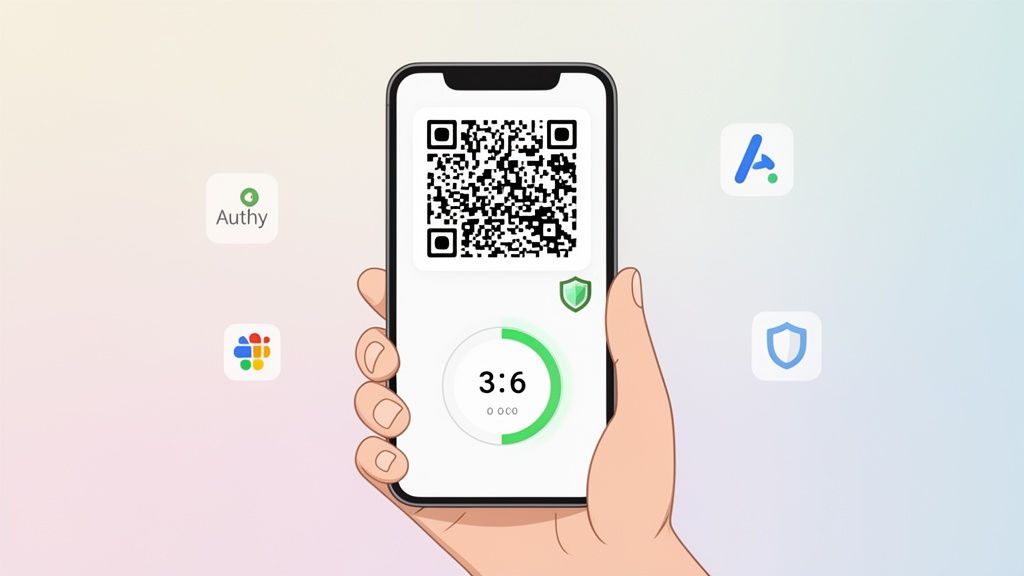
Using a Robinhood authenticator app is the single best move you can make to lock down your investments. It’s a huge leap forward from relying on vulnerable SMS codes. Think of it as a digital key that lives on your device, generating a unique, time-sensitive code that only you can access. It effectively slams the door on anyone trying to get in without your permission.
If you're still using text messages for two-factor authentication (2FA), you're leaving your portfolio exposed. While getting a text code feels secure, it has a glaring weakness that hackers actively hunt for: SIM swapping.
This isn't a theory; it's a common attack. Here’s how it works:
The real-world danger of this became painfully clear during a major security incident. In November 2021, Robinhood disclosed a breach where hackers accessed data from 7 million users. While Robinhood's core systems weren't breached, the event exposed a critical vulnerability: 4,400 phone numbers were compromised, creating a direct runway for account takeovers via SIM swapping. You can read the full analysis of the security incident to grasp the risks.
This incident hammered home one simple truth: securing your login is just as critical as the platform securing its servers.
Your password proves what you know, but an authenticator app proves what you have. Without your physical device, a hacker is stopped cold, even if they’ve stolen your password.
Robinhood now strongly nudges users toward a tougher security setup using a dedicated authenticator app. This approach completely changes the game.
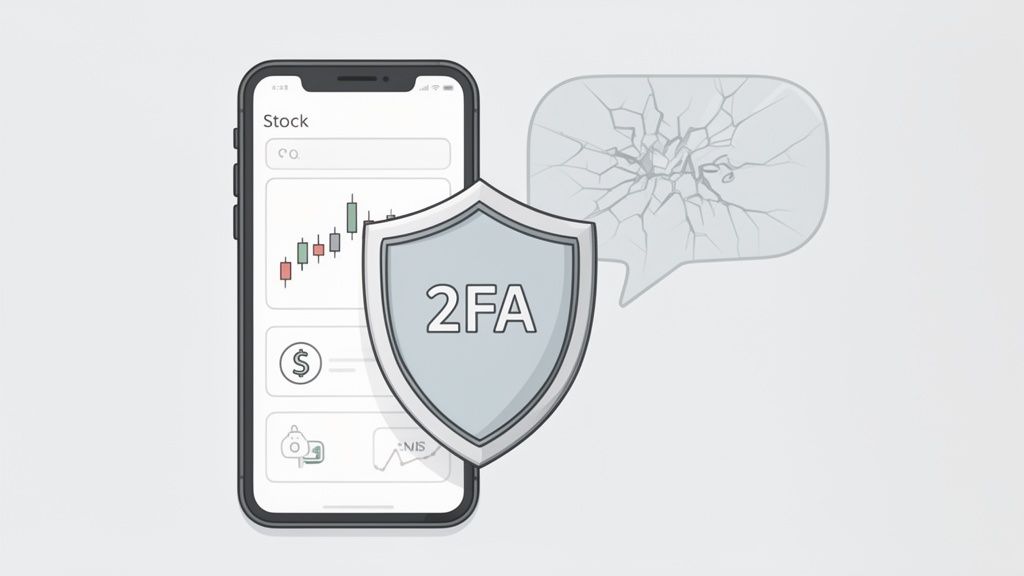
Authenticator apps generate Time-Based One-Time Passwords (TOTP)—the six-digit codes that refresh every 30 seconds. The magic is that they’re created entirely on your device, completely separate from your mobile network. This design neatly sidesteps the fatal flaws of SMS.
SMS Authentication (Weak)Authenticator App (Strong)Vulnerable to SIM Swapping: Your phone number is the weak link.Immune to SIM Swapping: Codes are tied to your device, not your number.Requires Cell Service: No signal means no code and no login.Works Offline: Codes generate on-device, no network needed.Can Be Intercepted: Codes are sent over an insecure network.Never Transmitted: Codes are generated and expire locally.
Stepping up your security isn't just a good idea; it’s a non-negotiable step for protecting your money in a world where digital threats are always getting smarter.
When you set up two-factor authentication with Robinhood using an authenticator app, you scan a QR code or manually enter a setup key. What's actually happening is that Robinhood is sharing a secret cryptographic key with your authenticator app. This secret key is the foundation of how TOTP works — both Robinhood's servers and your authenticator app use the same secret combined with the current time to generate matching six-digit codes.
The critical security detail that almost nobody explains is that this secret key is permanent and irreversible. Once your authenticator app has it, the secret stays stored in the app's data indefinitely. If you delete the Robinhood entry from your authenticator, the secret is gone. But if you keep the entry, that secret persists through app updates, phone restarts, and in some cases even through cloud backups if you're using a cloud-synced authenticator like Authy.
This creates a vulnerability that's invisible to most users: anyone who gains access to your unlocked phone and opens your authenticator app can view your TOTP secrets. Some authenticator apps even have export functions that let you view the raw secret keys as QR codes or text strings, which means someone with temporary access to your phone could clone your entire 2FA setup to their own device without you knowing.
Cloud-synced authenticator apps like Authy offer incredible convenience for device migration and backup, but they introduce a tradeoff that's rarely explained clearly. When you enable cloud sync, your TOTP secret keys get uploaded to the authenticator company's servers, encrypted with your account password or a master key you set.
The security model shifts from "your secrets exist only on your physical device" to "your secrets exist in the cloud, protected by encryption and your account password." This means the security of your Robinhood 2FA is now also dependent on the security of your Authy account password, the strength of the encryption Authy uses, and whether Authy's cloud infrastructure gets breached or compromised.
For most users, this tradeoff is worthwhile because the convenience and recovery benefits outweigh the incremental risk. But for high-value accounts or users with sophisticated threat models, the existence of cloud-stored TOTP secrets creates an additional attack surface that doesn't exist with purely local authenticators like Google Authenticator in its default configuration.
The practical defense against TOTP secret theft is layering additional security on top of your authenticator app itself. On iOS, enable Face ID or Touch ID for your authenticator app so it requires biometric authentication to open. On Android, use app-specific locks or biometric authentication where available. This ensures that even if someone has your unlocked phone, they still can't open your authenticator without an additional authentication factor.
The second defense is regularly reviewing which accounts you have in your authenticator and removing entries for services you no longer use. Fewer TOTP secrets stored means a smaller attack surface if your authenticator is compromised. When you remove an account from your authenticator, immediately log into that service and disable 2FA or set it up fresh with a new secret key to ensure the old secret is invalidated.
The third defense is understanding that if your phone is lost or stolen while unlocked, or if you suspect someone may have cloned your authenticator, you need to immediately disable and re-enable 2FA on all accounts in that authenticator. This generates new secret keys and invalidates the old ones, cutting off access from any cloned authenticators.
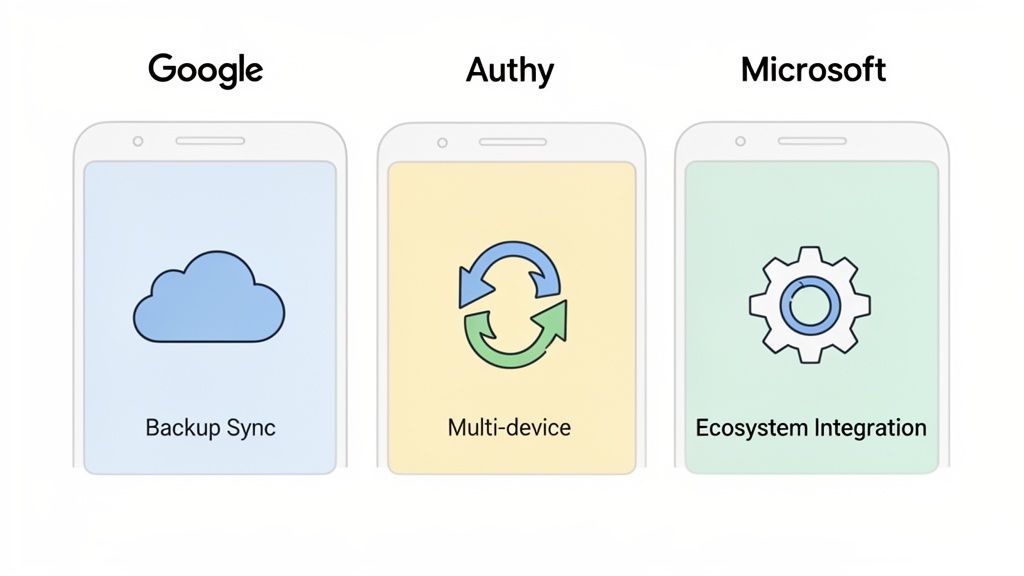
Picking a Robinhood authenticator app feels like a small decision, but it has huge implications down the line. While they all generate secure codes, the real difference emerges when you lose or upgrade your phone. Your choice comes down to your personal tech habits and how much of a safety net you need.
When protecting financial accounts, some features are non-negotiable. For your Robinhood account, focus on how an app handles device migration and account recovery.
Here's a checklist of must-have features:
These features directly impact your ability to access your account smoothly and recover it quickly if things go sideways. The security layers for a platform like Robinhood are just as critical as for a DeFi wallet. You can see how this applies elsewhere by reading our guide on how secure a Coinbase wallet is.
To make this decision easier, let's put the top three apps head-to-head on the features that truly matter for protecting your Robinhood account.
FeatureGoogle AuthenticatorAuthyMicrosoft AuthenticatorSimplicityExcellent. Minimalist, no-frills interface.Good. Clean UI with more features.Good. Clean, integrates with Microsoft.Cloud BackupYes. Syncs codes to your Google Account.Excellent. Encrypted, password-protected backups.Yes. Backs up to your Microsoft account.Multi-Device SyncLimited. Sync is for backup, not live use.Excellent. Seamlessly syncs across multiple devices.Limited. Primarily for backup, not multi-device.RecoveryGood. Restores from Google Account backup.Best-in-class. Easiest to recover on a new device.Good. Restores from Microsoft account backup.
After comparing them, a clear winner often emerges for users who prioritize recovery and convenience.
For many investors, Authy's superior backup and multi-device sync make it the top choice. Losing your phone is stressful enough; Authy ensures that regaining access to your Robinhood account isn't part of the panic.
Ultimately, the choice is yours. Google Authenticator offers pure simplicity, while Microsoft Authenticator is a great pick if you're deep in its ecosystem. But for sheer resilience when managing financial accounts, Authy usually takes the cake.
Now that you've picked your app, let's connect it to your Robinhood account. The process is quick, but the most crucial part is saving your backup codes. Think of this as building a new digital vault for your investments. The whole thing should only take a few minutes.
For a deeper dive, check out the full guide on Robinhood authenticator setup.
After confirming, Robinhood will show you a set of backup codes. DO NOT SKIP THIS STEP. These single-use codes are your emergency keys. If you lose your phone, they are the only way back into your account.
Where to Store Your Backup Codes Safely:
Here are the smartest options:
Storage MethodSecurity LevelBest ForPassword ManagerHighSecure, encrypted storage accessible from multiple devices.Physical SafeVery HighBulletproof offline security for those with a secure home location.Encrypted USB DriveHighTech-savvy users comfortable managing their own encrypted hardware.
Taking a few minutes to store these codes properly ensures a lost phone is just an inconvenience, not a financial catastrophe.
Getting your Robinhood authenticator app running is a massive step up, but the job isn't done. You'll eventually get a new phone, or worse, you might lose or break your current one. Having a plan for these moments is just as critical as the initial setup.
Switching your authenticator to a new device can be messy if you're unprepared. The golden rule is to handle this before you wipe or get rid of your old phone.
Action Plan for Phone Migration:
Pro Tip: This is exactly where an app like Authy shines. Its multi-device sync turns a potentially tedious task into a non-event. Just install Authy on the new phone, verify your identity, and your Robinhood 2FA token syncs right over. No disabling and re-enabling is required.
This is the exact scenario your backup codes are for. If you lose your phone but have your codes stored safely, getting back in is straightforward.
Recovery Steps Using Backup Codes:
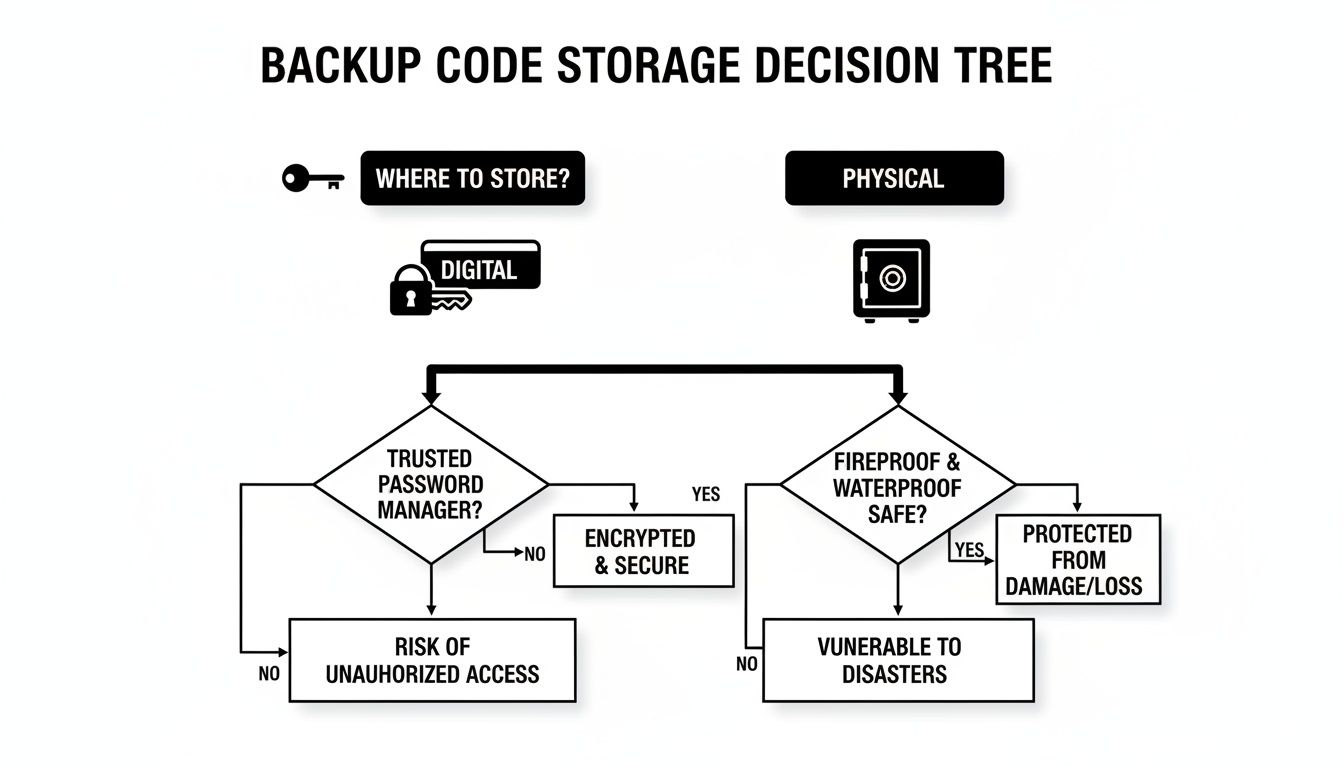
The key takeaway is to choose between the digital convenience of a password manager and the offline resilience of a physical safe. Just never store the codes on the same device you use for authentication.
Losing both your device and your backup codes is the toughest spot to be in, but it’s not hopeless. Getting back in will require proving your identity directly to Robinhood's support team.
Action Plan for Worst-Case Recovery:
This scenario underscores why managing your backup codes is so vital. If you find your account has been compromised, it's also worth understanding what a Robinhood account being restricted means for your next steps.
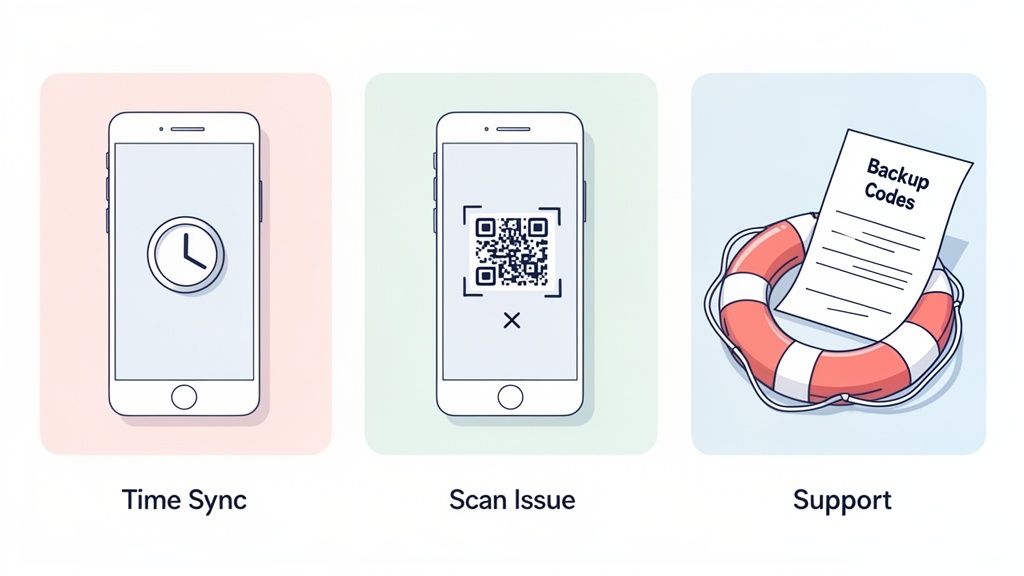
Even with a perfect setup, tech has its moments. When your Robinhood authenticator app gives you trouble, it's usually one of a few common hiccups. The trick is knowing what to look for.
The most common issue is a valid code being rejected. This is almost always a time sync problem. Your authenticator app and Robinhood's servers must be perfectly in sync. If your phone's clock has drifted, the codes won't match.
How to Sync Your Phone's Clock:
Toggling this setting off and on again can often resolve the issue instantly.
When you're unexpectedly locked out, remember that Robinhood has a robust identity verification system in place. If all else fails, their support team can guide you through a recovery process, though it requires patience.
Frustrated that the QR code won't scan during setup? Don't be. It's usually a simple fix.
Troubleshooting Checklist for QR Codes:
This manual key is a reliable Plan B. It's a good reminder of why backup methods are important, much like Robinhood's own robust onboarding process, which you can learn about in these app onboarding friction findings.
Got questions about using an authenticator app with Robinhood? You're not alone. Here are some quick, straightforward answers to the most common things investors ask.
Yes, absolutely. Think of an authenticator app as a universal key ring for your digital life. It’s designed to manage 2FA for dozens of different services—Robinhood, crypto exchanges, email, and social media—all in one secure, organized place.
Losing both can feel like a disaster, but your account isn't gone forever. You must contact Robinhood Support immediately to begin a manual identity verification process.
Get ready for a thorough check-in. The support team has to be 100% sure you're the real account owner before they restore access. This is exactly why stashing your backup codes somewhere safe and separate from your phone is so important.
The process is deliberately strict to keep your assets safe. Once you're back in, you might want to learn how to set a Robinhood limit order to manage trades more precisely.
Without a doubt, yes. An authenticator app is far more secure. While Robinhood's "Device Approval" adds a helpful layer, it's still tied to your Robinhood password. An authenticator app creates a truly separate verification factor. Even if a hacker steals your password, they still need your physical, unlocked phone to get that rotating 6-digit code. It's a much tougher barrier.
Robinhood doesn't officially endorse one app over another. Their platform works with any standard Time-Based One-Time Password (TOTP) app, giving you the freedom to choose. This means you can pick the app that fits your needs—whether that’s Authy for its excellent cloud backup or Google Authenticator for its simplicity.
Ready to turn on-chain data into actionable trading signals? Wallet Finder.ai helps you discover and track top-performing crypto wallets, so you can mirror winning strategies in real time. Start your free trial today and trade smarter. Find your edge with Wallet Finder.ai.

A premier DeFi analytics platform empowering traders to discover and analyze profitable blockchain wallets, trades and tokens.